

Property Pipeline keeps every property you’ve saved in one list. Filters, sorting and batch actions help you narrow it down to a strategy, area or stage, and only the filtered properties show on the map.
Filter your pipeline
- Open Property Pipeline. Click Property Pipeline in the side menu.
- Choose List or Table. Use the List and Table buttons. Table view shows more columns and more filters.
- Set the main filters. Use the drop-downs across the top: Status:, Tags:, Locality: and Zoning:. In table view you’ll also see Listing Status: and Property Type:. Buyers agents using Buyer Pipeline also get a Buyer: filter.
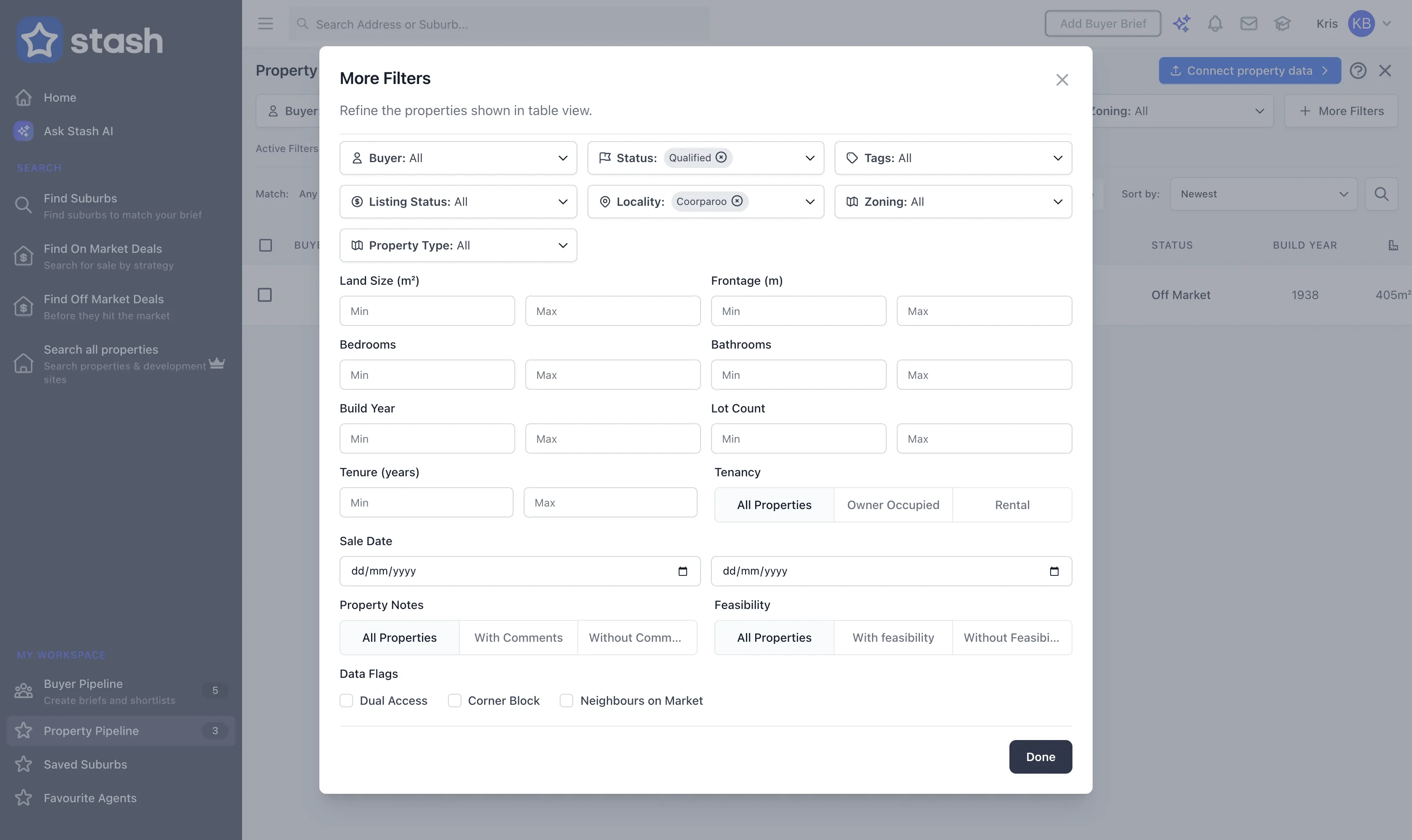
- Add more filters if you need them. Click More Filters to filter by Land Size (m²), Frontage (m), Bedrooms, Bathrooms, Build Year, Lot Count, Tenure, Tenancy, Sale Date, Property Notes, Feasibility, Data Flags (such as Corner Block and Dual Access) and Mail List.
- Choose how filters combine. Next to Match:, pick Any to show properties that match any selected filter, or All to show only properties that match every filter.
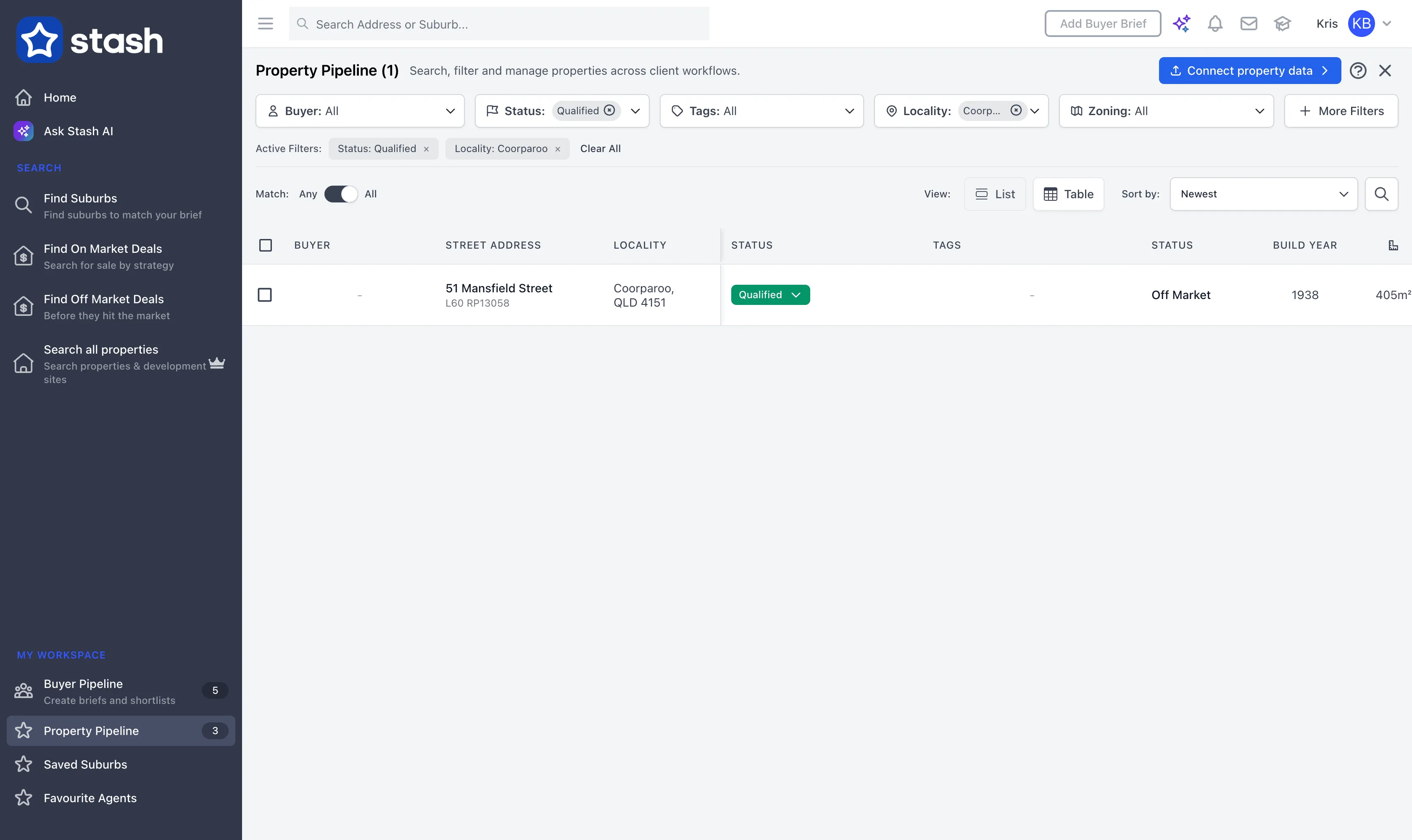
Your filters appear under Active Filters:. Remove one to widen the list again.
Only filtered properties show on the map. If pins seem to be missing, check Active Filters: and clear them to see everything again.
Sort and search
Use Sort by: to order the list, for example by Newest, Address, Status, Due Date, Area Largest or Frontage Largest. Due Date sorts properties by their follow-up reminder date. Click the search icon to find a saved property by address.
Update many properties at once
- Tick the properties. Tick each one, or use Select All to tick everything that matches your filters.
- Change status or tags. Use the status (flag) button or the tags button, choose the new value, click Apply, check the summary, then click Ok. For tags you can choose Add, Remove or Replace.
- Use the footer actions. EXPORT downloads the ticked properties as a CSV file. SEND TO MAIL LIST adds them to your mail list for letters.
To delete ticked properties, use the remove (bin) button. This can’t be undone.
Related articles
Common questions
Why can’t I see a property I saved?
Check Active Filters: first. If a warning icon shows next to the Property Pipeline title, some saved properties are no longer available. Click the icon to review and remove them.
What does the Mail List filter do?
It lists your recent mail campaigns by name and date. Pick one to see the properties that were in it, so you know who you’ve already written to.