

The Stash mailhouse lets you get many property conversations started at once. You pick the owners you want to reach, write one letter that’s personalised for each of them, and we print and post the lot for a single payment.
Before you start
- An active Stash plan that includes the mail list. See plans.
- Saved properties with owner names and postal addresses in Contact Info. Without a name, a letter goes to The Owner. See owner details.
- A computer. The mail list isn’t available in the Stash mobile app.
How it works
- Find your targets. Search for properties that match your strategy, then add them to your pipeline in one go with ADD TO MY PIPELINE. Stash and save properties.
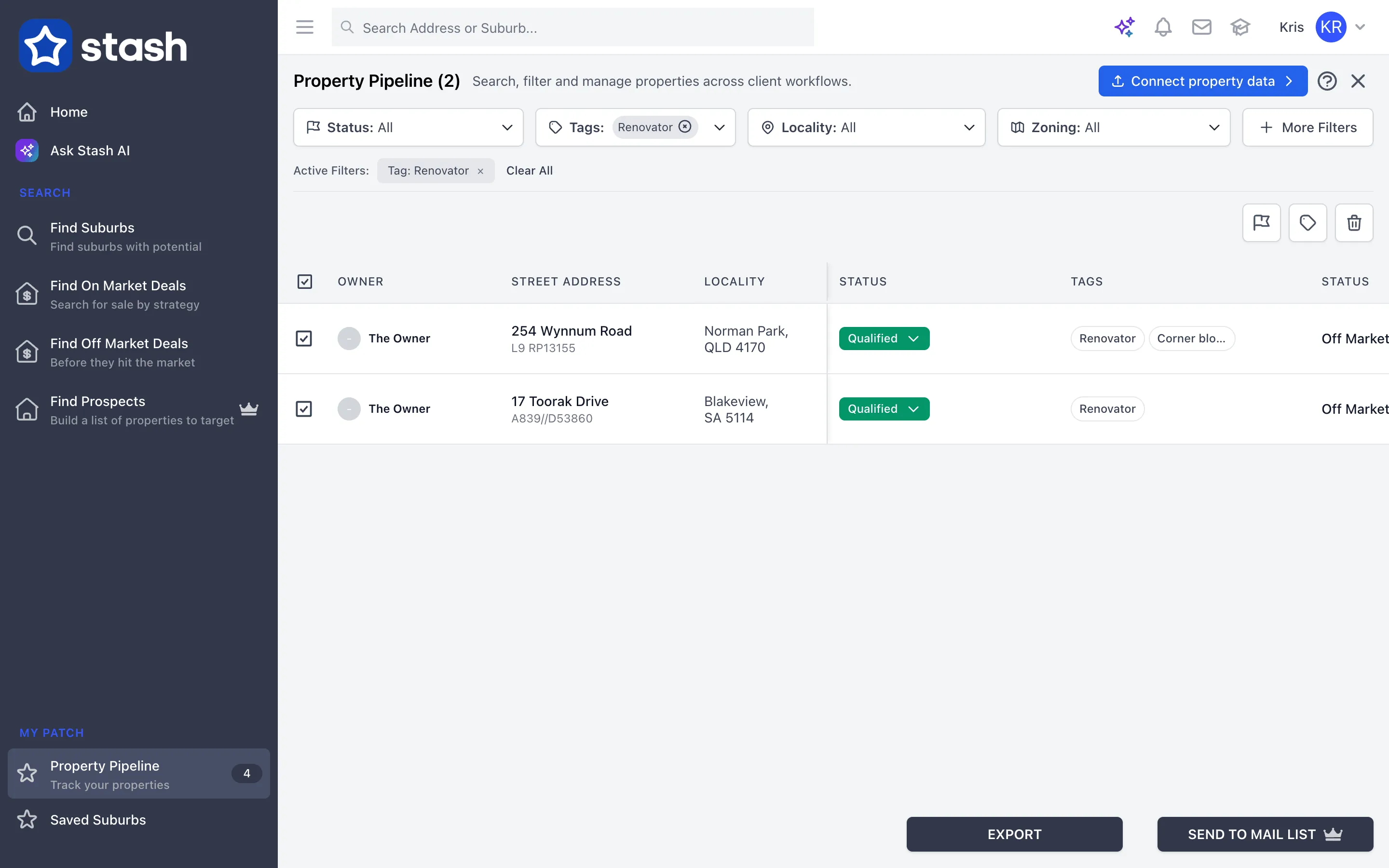
- Pick who to write to. In Property Pipeline, filter by status, tag, suburb or any other filter, then click Select All or tick the properties you want.
- Click SEND TO MAIL LIST. All ticked properties go to your mail list in one step.
- Update their status. With the same properties ticked, use the status button to move them to a stage such as Letter sent. Add a reminder to that status so you’re prompted to follow up. Set up auto reminders.
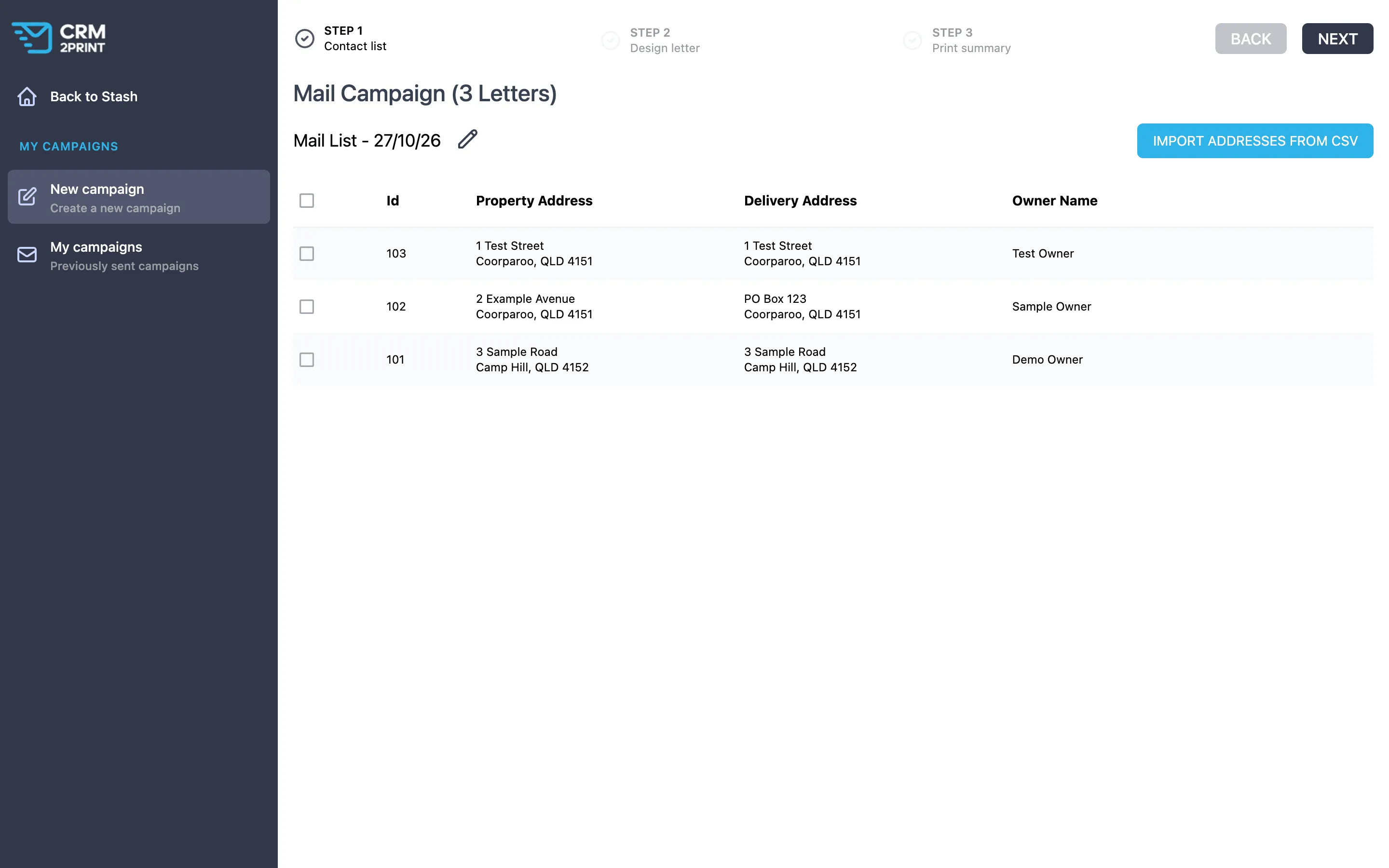
- Open your mail list. Click the envelope (Mail list) icon at the top of Stash. Your Mail Campaign opens in a new tab with every contact listed.
- Add contacts from elsewhere if you want. Click import addresses from CSV to add owners from another system or spreadsheet.
- Design one letter for everyone. Choose a template, add your letterhead and drop in placeholders, such as the owner’s name and property address, so each letter is personalised. Print letters to owners.
- Preview, then Pay & Send. Check the letters in Preview mode, review the Print summary, agree to the terms and click Pay & Send. Mail out letters.
Every campaign is saved under My campaigns with its receipt. In Property Pipeline, the Mail List filter shows which properties were in each campaign, so you don’t write to the same owner twice by mistake.
Make sure you have permission to contact each owner and follow the laws on direct marketing. Some government property data can’t be used for direct marketing. See owner details.
Common questions
Can I check the letters before paying?
Yes. Preview mode shows every letter with its placeholders filled in, and Download PDF gives you a copy of the whole campaign.
Some contacts were left out of my campaign
Contacts with incomplete details, or duplicates, are flagged on the Contact list step and left out. Fix the owner details in each property’s Contact Info card, then add the properties to your mail list again.