

If you print letters straight from your web browser, the browser can add its own header and footer to each page, such as the Stash web address, the date and page numbers. That text comes from your browser’s print settings, not from your letter, so you can switch it off.
Download your letters as a PDF
The simplest fix is to print from a PDF rather than from the browser page.
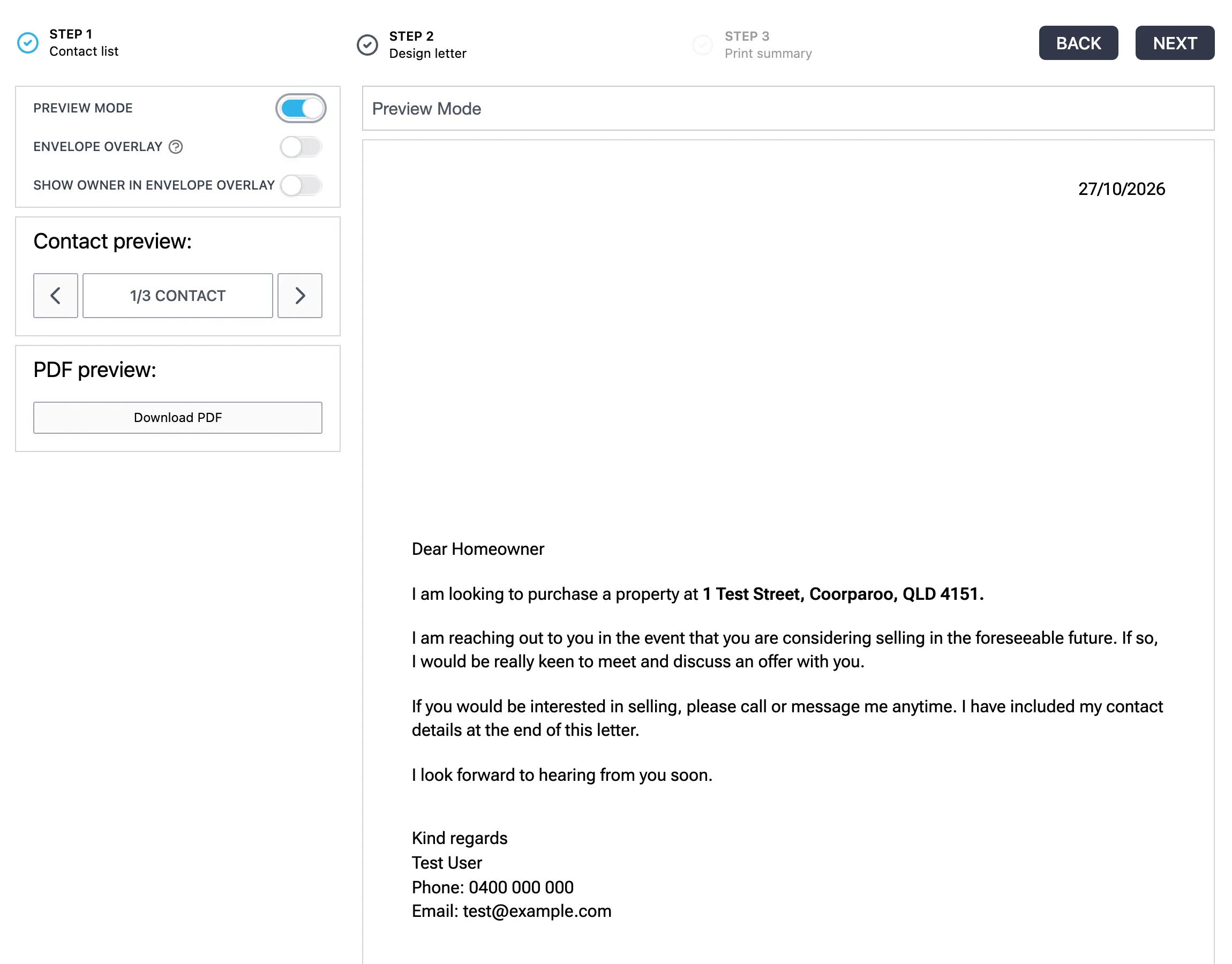
- Open your mail campaign. Click the envelope (Mail list) icon at the top of Stash, then click NEXT to reach the Design letter step.
- Turn on Preview mode. Check each letter looks right.
- Click Download PDF. Stash creates one PDF with every letter in the campaign. Open it and print it from your PDF viewer.
Print letters to owners covers the full steps.
Turn off browser headers and footers
If you do print from the browser, turn off headers and footers in the print window:
- Open the print window. Press Ctrl + P on Windows or Cmd + P on a Mac.
- Find the extra settings. In Chrome or Edge, click More settings. In Safari, click Show Details. In Firefox, click More settings.
- Untick headers and footers. Untick Headers and footers in Chrome or Edge, or Print headers and footers in Safari or Firefox.
- Print. Most browsers remember this setting for next time.
The exact wording depends on your browser and version. If you can’t find the setting, download the PDF instead.
Common questions
Will the web address appear on mailhouse letters?
No. Letters sent through the mailhouse are printed from your campaign, not from your browser. Mail out letters.
The address shows on other things I print from Stash
The same browser setting applies to anything you print from a web page, including reports. Turn off headers and footers as above.