

Statuses are the stages your saved properties move through, such as qualifying, feasibility or letter sent. Each status has its own colour, and saved properties show on the map as pins in that colour, so you can see where every property sits at a glance.
Open your statuses
- Open the property’s Property Flags menu. On any saved property, click the … button on the Property Flags card and choose Workflow Management.
- Or go there from your profile. Click your avatar at the top right, choose My Profile, then open the Workflows tab. You can also go to Settings and click Status Management.
Both take you to Pipeline Statuses, where you set order, colour, reminders and the default pipeline stage.
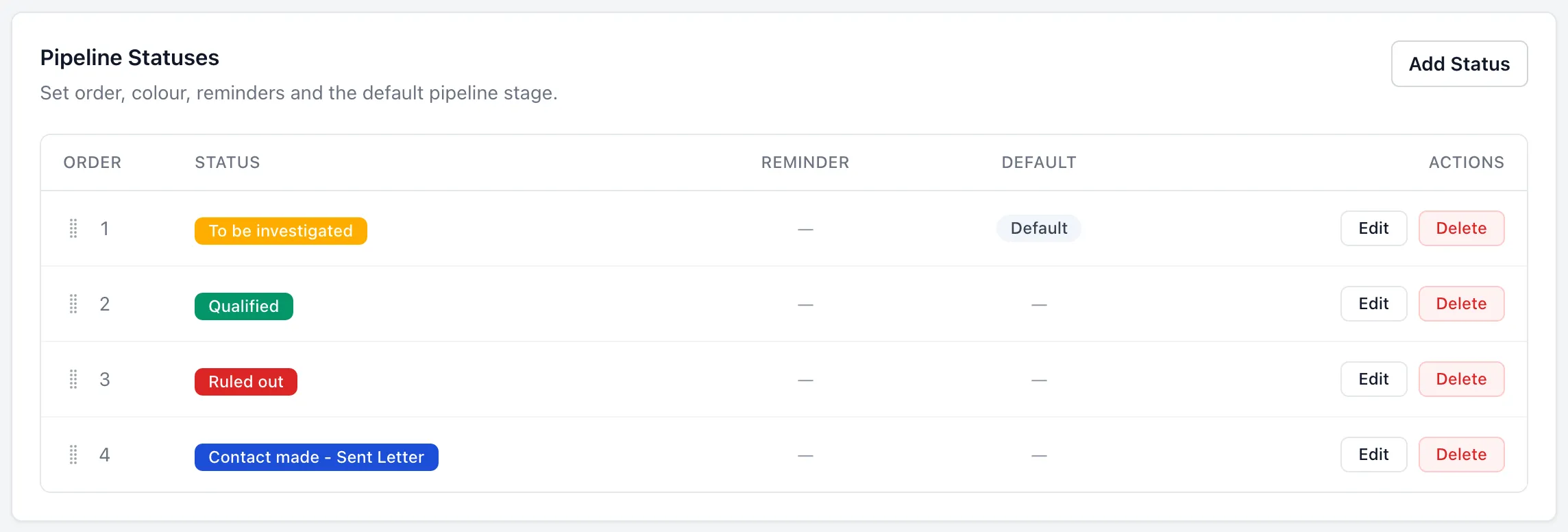
Add a status
- Click Add Status. It’s at the top right of Pipeline Statuses.
- Name it. Type a Status name. Each name must be unique.
- Pick a colour. Next to Colour, click the edit icon and choose a colour. This is the colour of the status label and the map pin.
- Add a reminder if you want one. Next to Reminder, set how long after a property moves into this status you want a follow-up. Set up auto reminders.
- Click Add Status. The new status is ready to use straight away.
Edit, reorder or delete statuses
- Edit a status. Click Edit on its row, change the name, colour or reminder, then click Save Changes.
- Reorder statuses. Drag the handle in the Order column to move a status up or down your pipeline.
- Delete a status. Click Delete and confirm. You must keep at least one status.
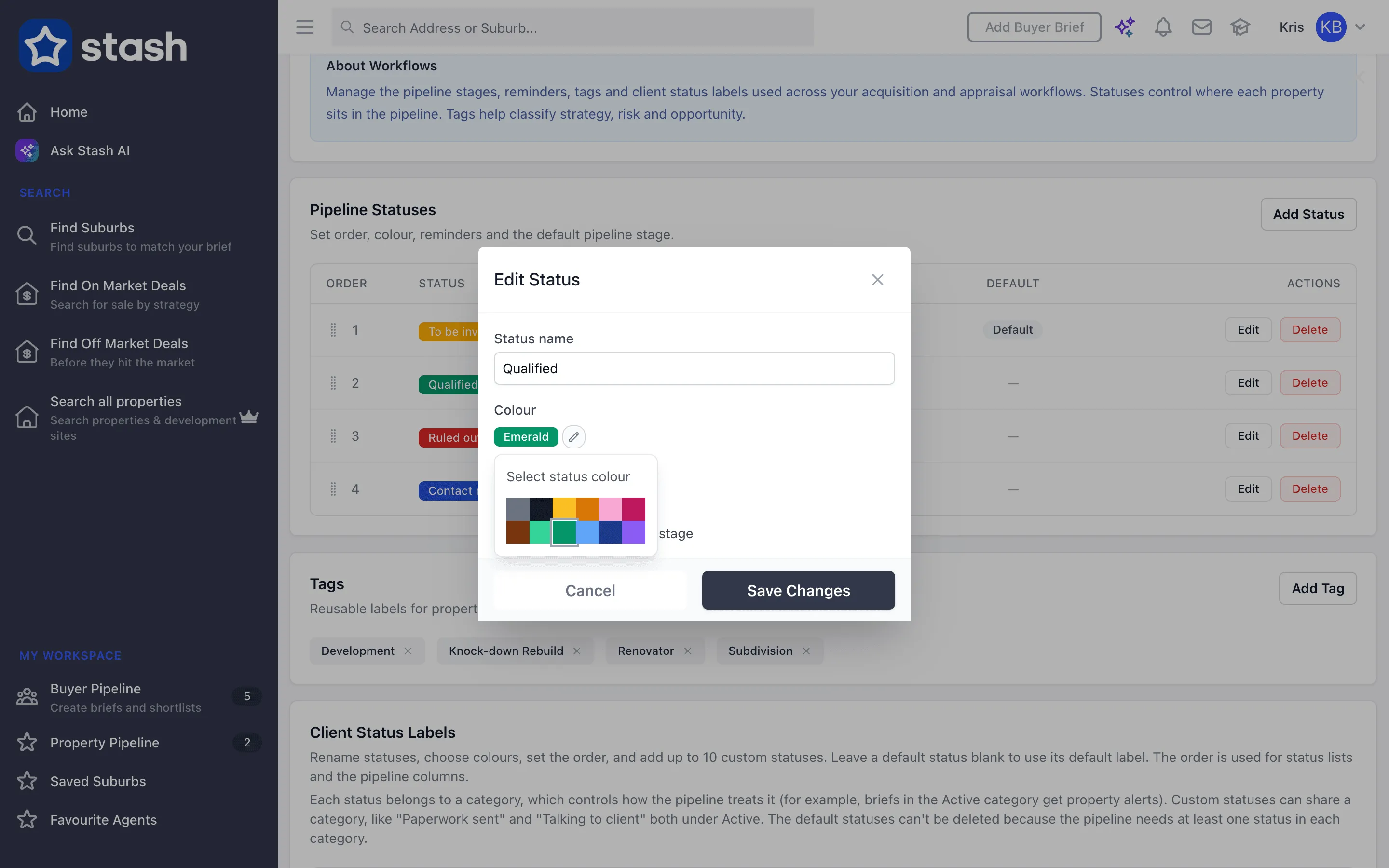
Choose the default status
The default status is the stage a property starts in when you save it. To change it, edit a status and tick Set as default pipeline stage, then click Save Changes. The table shows Default next to it.
To move a single property to another stage, open it and pick a new Pipeline Status: on the Property Flags card. To move many at once, use the status button in Property Pipeline. Filter and track saved properties.
Common questions
Why are some pins on the map a different colour?
Pins for saved properties use their status colour. Change the colour in Pipeline Statuses and the pins update to match.
Can I delete every status?
No. Your pipeline needs at least one status, and one status must be the default.
Can my buyers have their own statuses?
Buyers agents using Buyer Pipeline also see a Client Status Labels section in Workflows, which is separate from your pipeline statuses.