

Saving (or stashing) a property adds it to your Property Pipeline, so you can track it with statuses, tags, notes and reminders and come back to it later. You can save one property at a time, or a whole set of search results at once.
Save a single property
- Open the property. Search for an address, or click a pin on the map, to open its property page.
- Click STASH TO MY PIPELINE. You’ll find the button in the Property Flags card. The property is saved with your default pipeline status.
- Set a status and tags. Once it’s saved, the card shows Pipeline Status: and Tags:. Pick a status from the list and add any tags that help you sort it later.
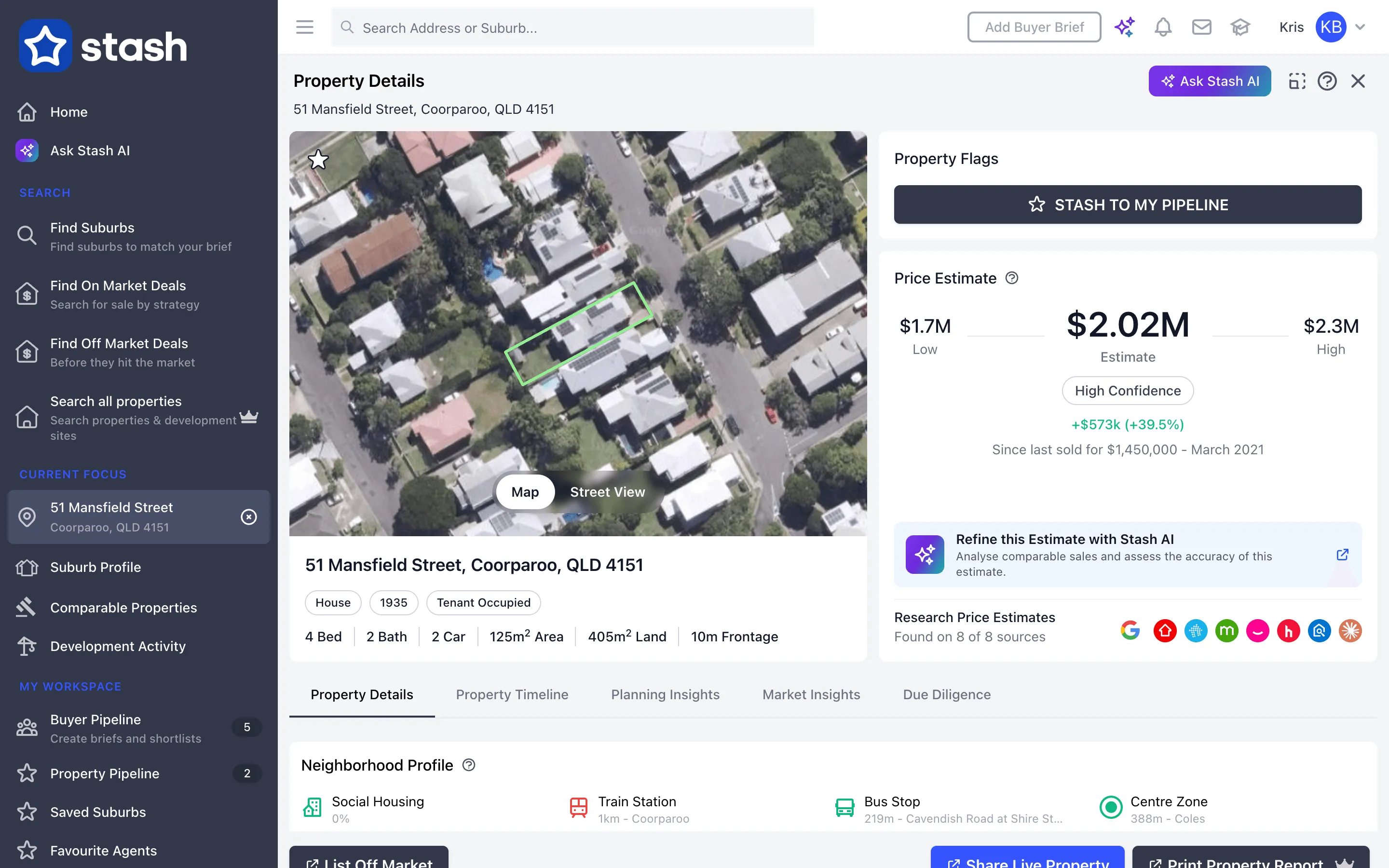
Saving a property also unlocks the cards that only work for saved properties, such as Contact Info, Property Notes and Checklist.
If you use Buyer Pipeline, the card also shows a Buyers: field, so you can link the property to one or more of your buyers.
Save many properties from your search results
- Run a search. Open Search all properties from the side menu (it’s called Find Prospects on real estate and property services accounts) and search by suburb, zoning, land size, frontage or any other filter.
- Choose the results to save. All results are ticked when the search finishes. Untick any you don’t want.
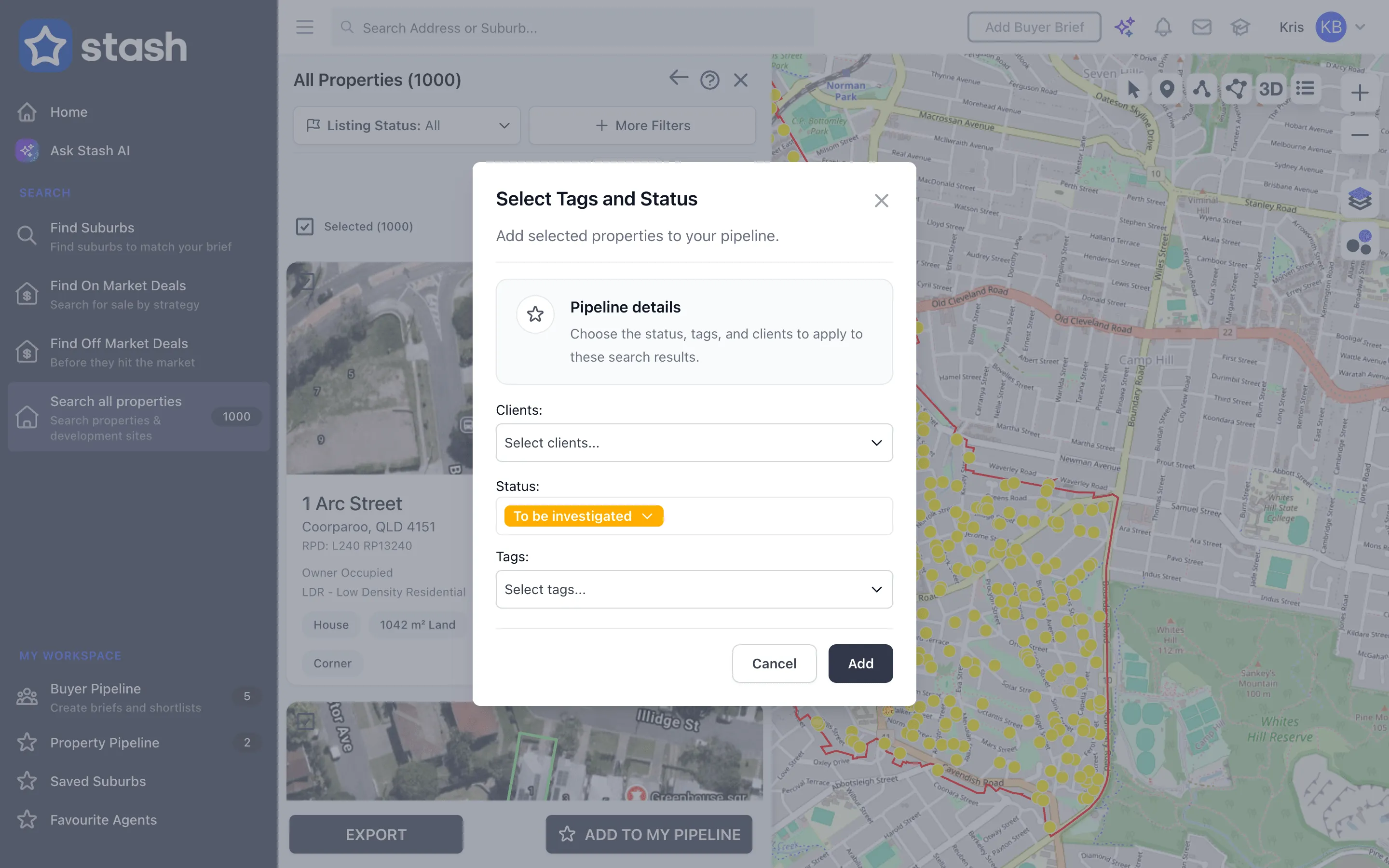
- Click ADD TO MY PIPELINE. It’s in the footer under the results.
- Pick a status and tags. In Select Tags and Status, the status starts on your default pipeline stage. Change it if you like, and choose any tags.
- Click Add. Stash confirms how many properties were stashed, and tells you if some were already in your pipeline.
Find your saved properties
Open Property Pipeline from the side menu. The number next to the title is how many properties you have saved. Saved properties also show on the map as pins in their status colour. Filter and track saved properties.
Remove a property
On the property page, click the … button on the Property Flags card, choose Remove from My Pipeline, then click Ok. To remove several at once, tick them in Property Pipeline and use the remove (bin) button.
Common questions
What does “Do you own this property?” mean?
On Stash plans, the Property Flags card asks “Do you own this property?”. Clicking here adds the property to My Properties as your own home or investment, rather than to your pipeline as a prospect.
Why is the stash button greyed out?
Archived property records can’t be saved. Search for the current address, or contact us if you can’t find it.
Can I bring in properties from another system?
On Stash plans, the Property Pipeline table view has a Connect property data button. Use Upload CSV to import properties from a file.