

Tags are reusable labels, such as Subdivision, Corner block or Referral, that help you group saved properties by strategy, risk or source. A property can have several tags, and you can filter your pipeline by them.
Before you start
Tags only apply to saved properties. Stash and save properties first.
Create your tags
- Open Workflows. Click your avatar at the top right, choose My Profile, then open the Workflows tab. You can also go to Settings and click Tags Management.
- Add a tag. In the Tags section, click Add Tag, type a Tag name and click Add Tag.
- Rename or delete tags. Click a tag to rename it, then click Save Changes. To delete one, click the cross next to it and confirm with Delete.

Add tags to a property
- Open a saved property. Click it in Property Pipeline, or open it from the map.
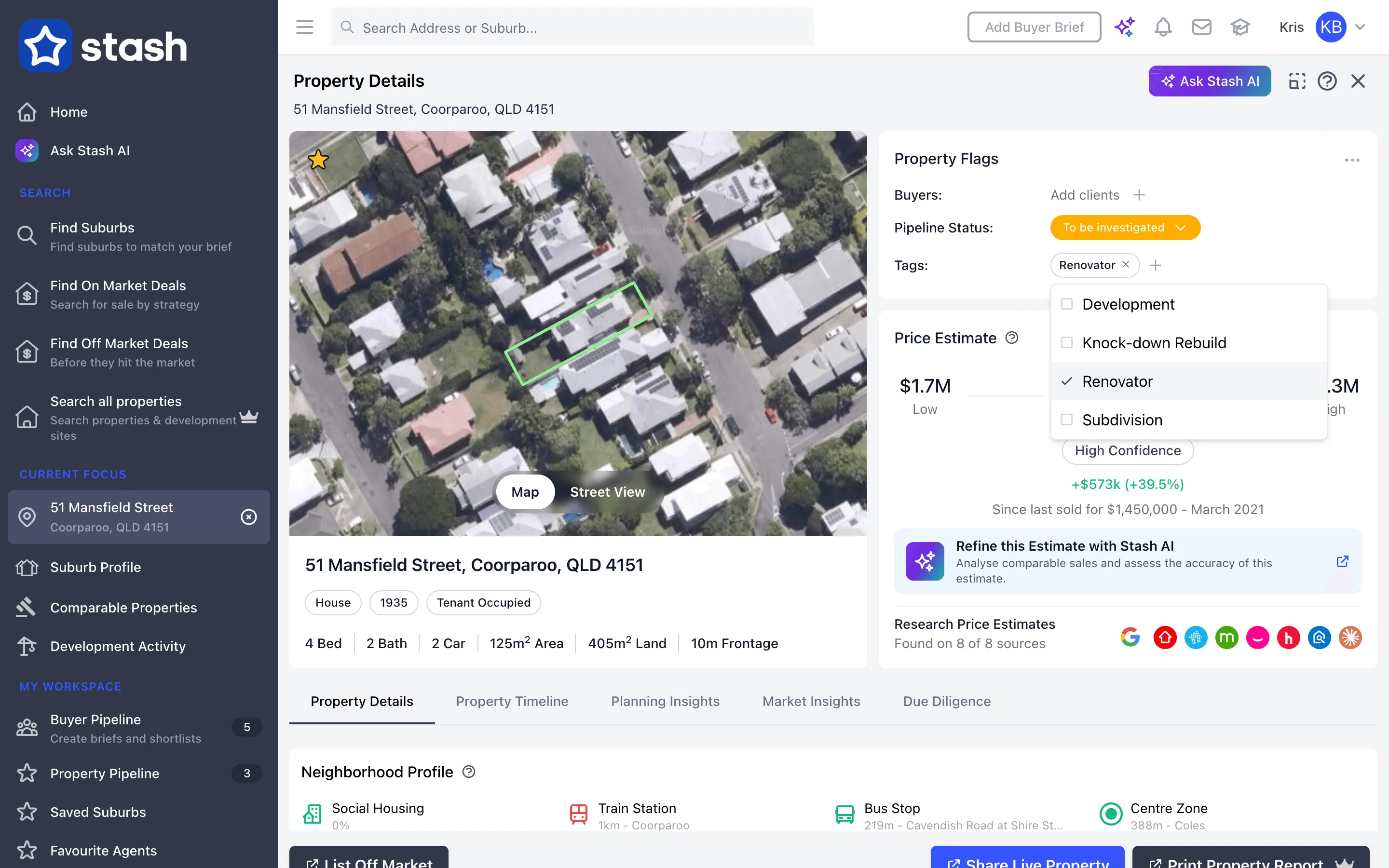
- Click Add tags. It’s next to Tags: in the Property Flags card.
- Pick one or more tags. Tags save as soon as you select them. Click a selected tag again to remove it.
When you add search results with ADD TO MY PIPELINE, you can choose tags in the Select Tags and Status window, so every property is tagged in one step.
Tag many properties at once
- Open Property Pipeline and tick the properties. Use filters first if it helps, then tick the ones you want, or click Select All.
- Click the tags button. Choose Add, Remove or Replace, then pick your tags. For Replace, also choose the Tags to replace:.
- Apply the change. Click Apply, check the summary, then click Ok.
Use tags to find properties
In Property Pipeline, use the Tags: filter to show only properties with a tag, or sort with Tags - Ascending. Filter and track saved properties.
Common questions
What happens to properties when I delete a tag?
The tag is removed from your tag list, so you can’t pick it any more. Deleting a tag doesn’t remove any properties from your pipeline.
Can I see when a tag was added?
Yes. Tag changes are listed in the property’s activity. Property activity timeline.