

You can write to property owners straight from your pipeline. Stash builds a personalised letter for each owner from your saved properties, and you can download the letters as a PDF to print yourself or send them through our mailhouse.
Before you start
- The properties need to be in your pipeline. Stash and save properties.
- Letters use the owner name and postal address in each property’s Contact Info card. If there’s no name, the letter goes to The Owner. See owner details.
- The mail list needs a plan that includes it. If you see a lock icon on SEND TO MAIL LIST, see plans. It isn’t available in the Stash mobile app.
Add properties to your mail list
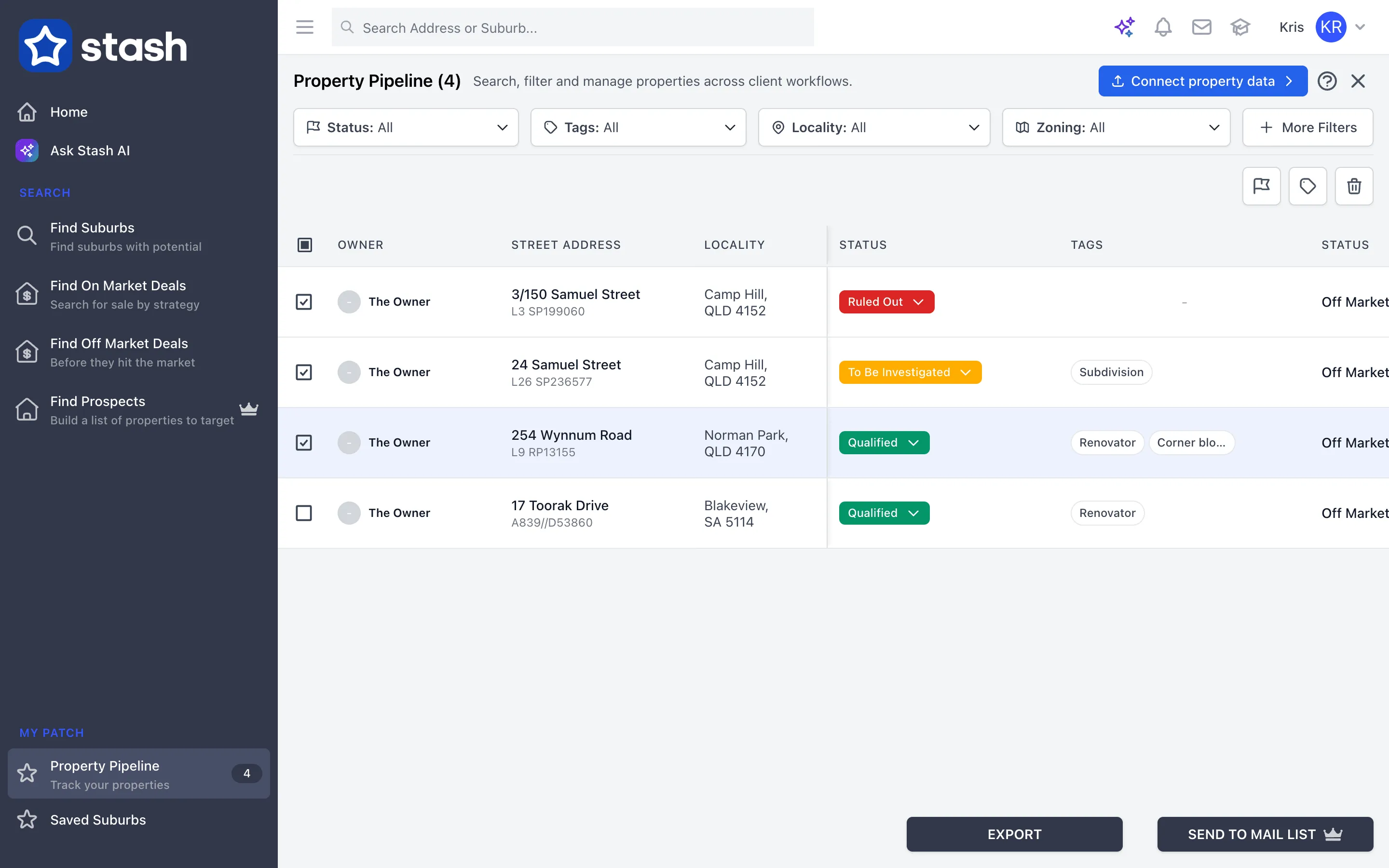
- Open Property Pipeline. Use filters to narrow the list, for example by status, tag or suburb. Filter and track saved properties.
- Tick the properties. Tick each one, or use Select All.
- Click SEND TO MAIL LIST. It’s in the footer. Stash confirms how many properties were added to your mail list.
You can also add properties from a follow-up reminder notification. Set up auto reminders.
Check your contact list
- Open your mail list. Click the envelope (Mail list) icon at the top of Stash. Your mail campaign opens in a new tab.
- Review the contacts. The Contact list step shows each owner and property. Contacts that are incomplete or duplicated are flagged and left out.
- Name the campaign. Click the edit icon next to the campaign name to rename it, so you can find it later.
- Add more addresses if you need to. Click import addresses from CSV. Download example CSV file shows the columns to use.
- Click NEXT. You need at least one contact to continue.
Design your letter
- Pick a template. Use Select Template to start from a saved template, or choose Blank template. Choosing a template replaces your current content.
- Edit the content. Click in the editor and type. To personalise each letter, place your cursor and click a placeholder, such as the owner’s first name or the property address.
- Add a letterhead. Click Upload PDF letterhead and choose your file. The letterhead must be a PDF. It sits behind your text, so adjust the content to fit.
- Save your template. Use the ··· menu to save, rename or delete templates for next time.
- Preview the letters. Turn on Preview mode to see each letter with its placeholders filled in. Use the arrows to check each page.
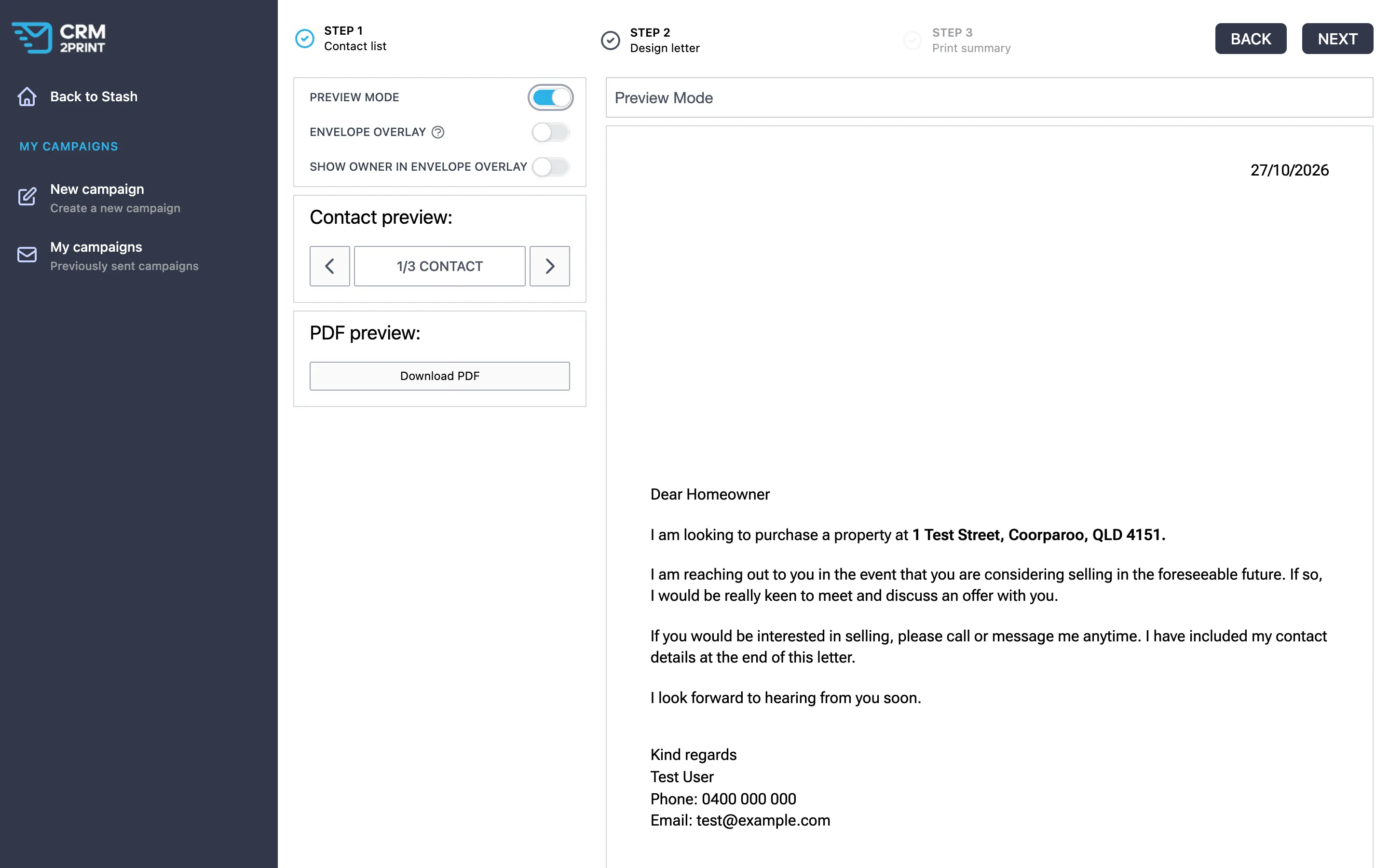
Envelope overlay adds a yellow address box to the top of the letter. You need it for mailhouse letters. Turn on Show owner in envelope overlay to include the owner’s name, and Handwritten address to print the address in a handwritten-style font.
Print the letters yourself
In Preview mode, click Download PDF. Stash creates one PDF with every letter in the campaign, ready to print on A4 paper. If a web address appears in the footer when you print, see Remove the Stash website from your letters.
Send them through the mailhouse instead
Click NEXT to go to the Print summary, where you can pay and have the letters printed and posted for you. Mail out letters.