

The property activity timeline shows the history of a saved property: when you stashed it and each time you changed its status or tags. It’s a quick way to check where a property is up to, or when you last moved it along.
Before you start
The timeline is only available for properties in your pipeline. Stash and save properties.
Open the timeline
- Open the property. Click it in Property Pipeline, or open it from the map.
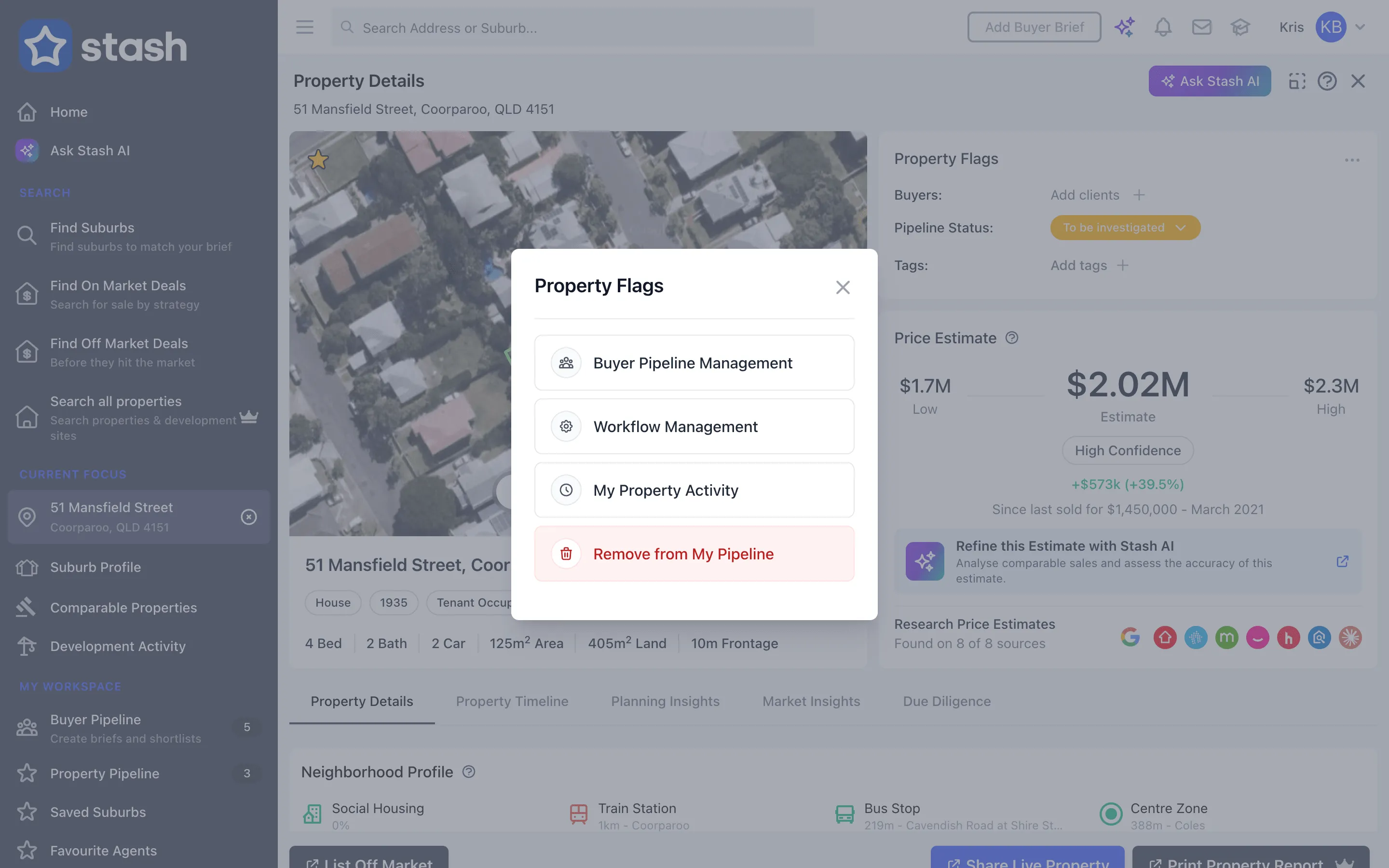
- Open the Property Flags menu. Click the … button at the top right of the Property Flags card.
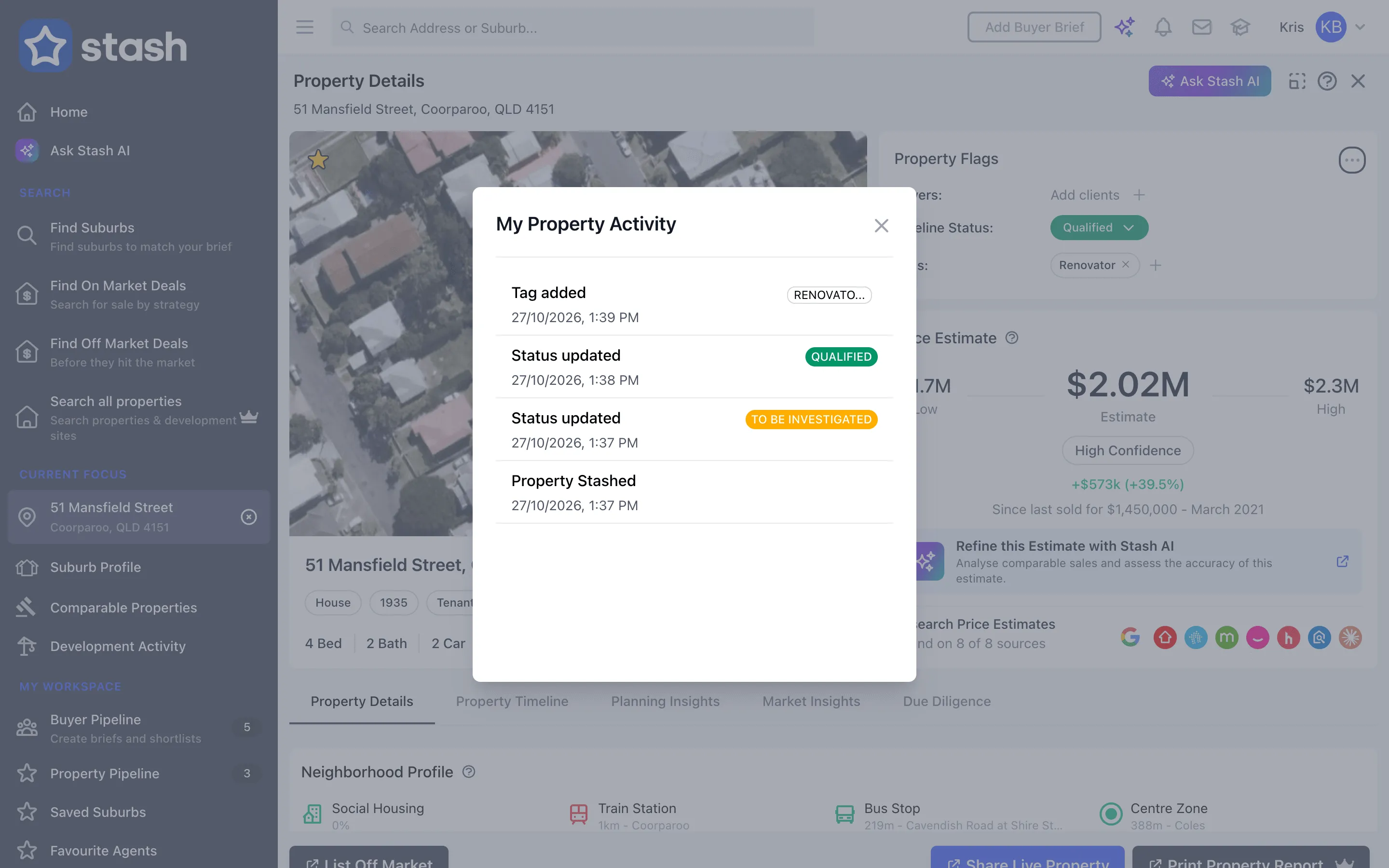
- Choose My Property Activity. The My Property Activity window opens with the newest activity at the top.
What the timeline shows
Each entry shows what happened, with the date and time:
- Property Stashed — you saved the property to your pipeline.
- Status updated — you changed its status. The new status label shows next to the entry.
- Tag added and Tag removed — you changed its tags. The tag shows next to the entry.
- Property Unstashed — you removed the property from your pipeline.
If you haven’t made any changes yet, you’ll see No property activity found yet.
The timeline records status and tag changes only. For calls, inspections and conversations, add details in the Property Notes card on the same page.
Common questions
Why don’t I see My Property Activity in the menu?
The menu only shows it for properties in your pipeline. If you’re viewing a buyer’s copy of a property in Buyer Pipeline, the option is hidden. Open the property from Property Pipeline instead.
Does the timeline show my team’s changes?
The timeline shows the activity recorded for your account.