

Buying two or more neighbouring lots can open up a bigger development than either site on its own. The Stash feasibility calculator lets you add extra lots to the same feasibility, so you can see the combined land area, purchase cost and profit in one place.
Before you start
Start from one of the lots. Open it in Stash and go to the Feasibility page. Run a feasibility study covers the basics.
Add lots to a feasibility
- Open the first property. Search for the address or click it on the map. On the Due Diligence tab, find the Feasibility card and click Create new feasibility.
- Check the first lot. In the Property Details section, the first property under Property of Interest is named after the property you opened, and its Area is filled in for you. Enter its Purchase price.
- Click Add property. A new card, Property #2, appears below the first.
- Name the new lot. Click the pencil icon next to Property #2 and type the lot’s address, so you can tell the properties apart later. Click the tick to keep the name.
- Enter its area and price. Fill in the Area and Purchase price for the added lot. You can click Calculate median per sqm to estimate the price from nearby house sales.
- Add more lots if you need them. Click Add property again for each extra lot. To remove an added lot, click the bin icon on its card.
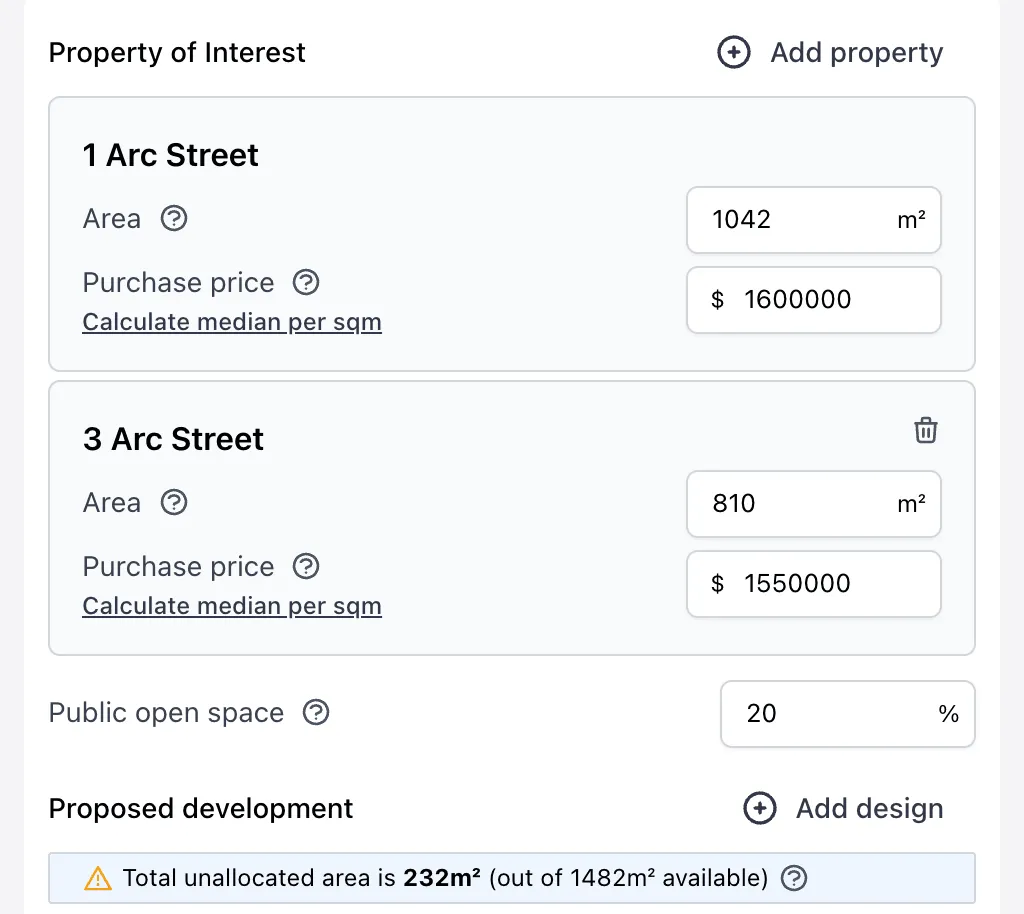
- Plan the development across the whole site. Stash adds up the areas of all the lots. Set the Public open space and the designs under Proposed development for the combined site. The note above the designs shows the Total unallocated area out of the area available.
- Complete the other sections and check the summary. Work through Finance Details, Net Realisation, Selling Costs and Development Costs. The Feasibility Summary shows the Total Purchase across all lots and the combined result.
- Save it. Click SAVE FEASIBILITY and give it a name. Save a feasibility study.
An amalgamated feasibility is saved against the property you started from. Open that property to find it again.
Tips
- Use the help icons. Hover the help icon next to a field to see what it covers.
- Try different mixes. Click Add design to model several lot or dwelling sizes on the combined site.
- Compare against a single lot. Save the amalgamated version under one name, then remove the extra lots and save again under a new name. Both stay on the MY FEASIBILITY tab.
Minimum lot sizes, frontage and density controls can change what’s possible on an amalgamated site. Check the minimum lot size and zoning details in Stash, then confirm with council or a town planner before you buy.
Common questions
Can I remove the first property?
No. The first property is always the one you opened. You can remove any lot you added.
Does Stash look up the added lot’s details for me?
No. Added lots aren’t linked to a property record, so enter the area and purchase price yourself. Use Measure area or the lot’s property page to check its land area.