

Your saved feasibility results can go straight into a Stash property report. Each saved feasibility gets its own page with the key figures, ready to download as a PDF or print.
Before you start
- Save the feasibility first. Only saved feasibilities appear in the report. Save a feasibility study.
- Property reports are a premium feature. If Print Report is greyed out, your plan doesn’t include it. See plans.
Print your feasibility results
- Open the property. Search for the address or click the property on the map.
- Click Print Report. It’s at the bottom of the property page. The report opens with your saved feasibilities included.
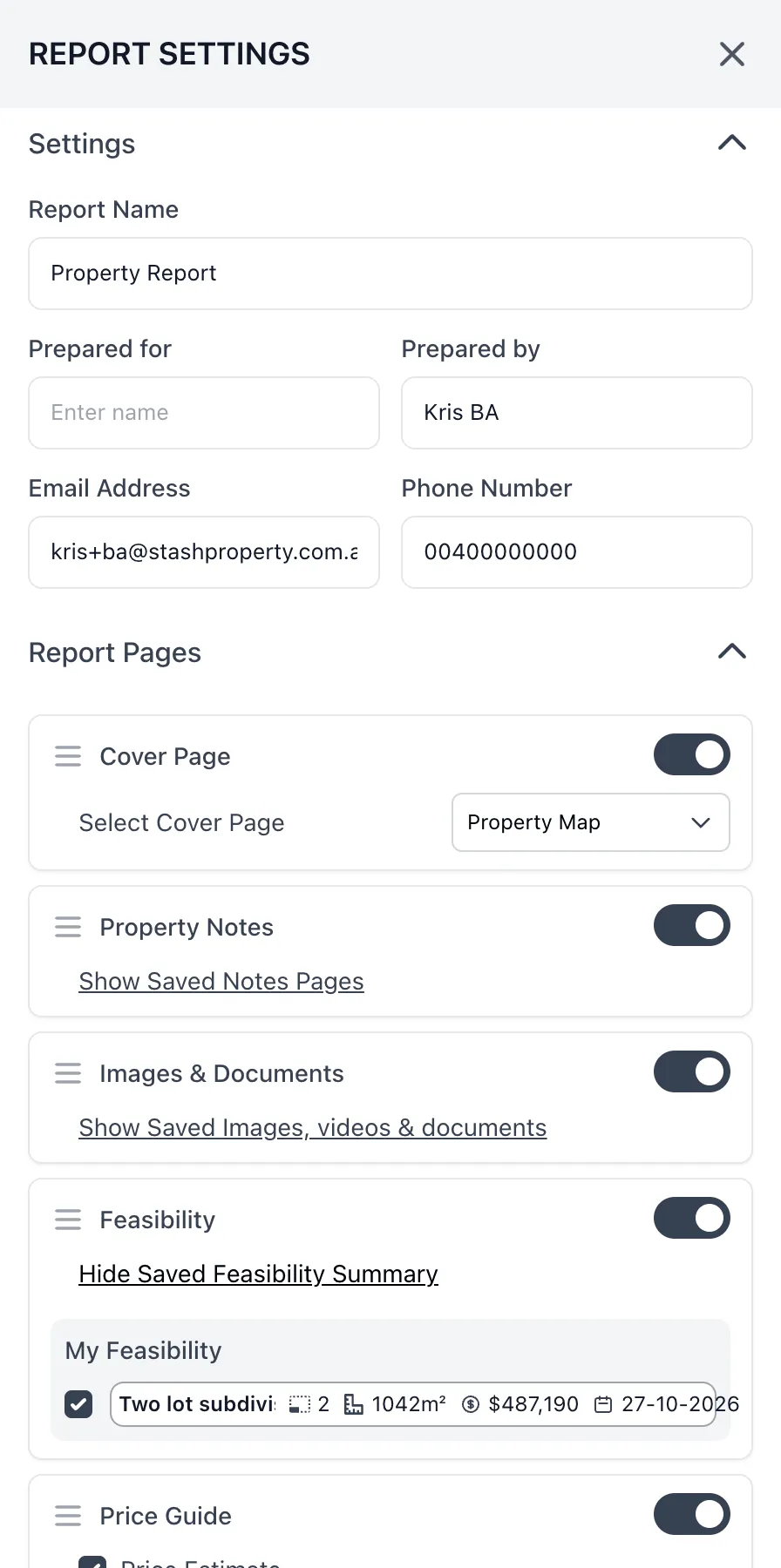
- Choose which feasibilities to include. Click Report Settings. Under Report Pages, make sure Feasibility is switched on, then click Show Saved Feasibility Summary and tick the feasibilities you want. All of them are ticked to begin with.
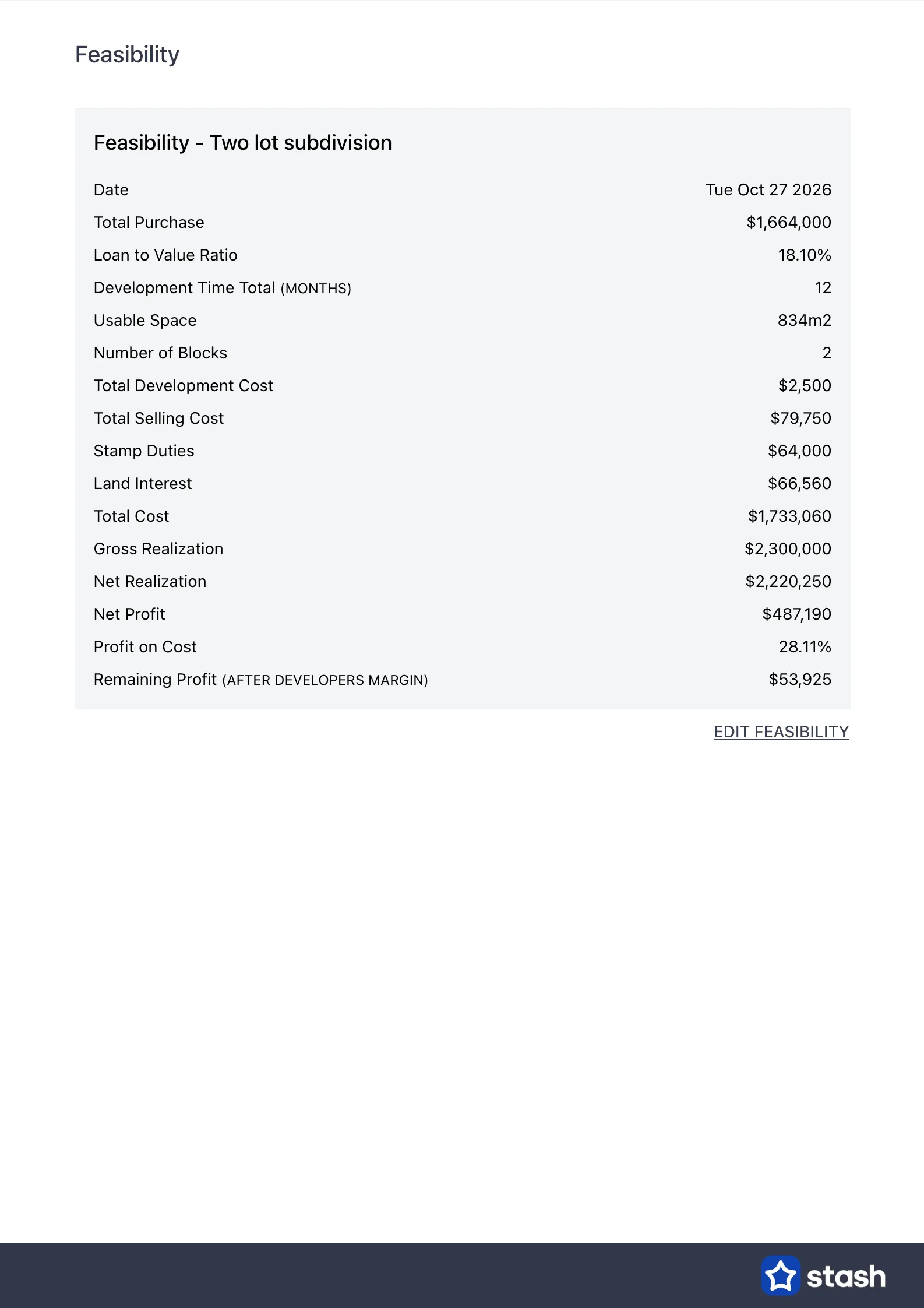
- Check the Feasibility page. Each feasibility appears on its own page, with the date, total purchase, loan to value ratio, usable space, number of blocks, development, selling and total costs, stamp duties, land interest, gross and net realisation, net profit and profit on cost.
- Download or print.
- Click Download Report to save the report as a PDF. The button shows Preparing Report while Stash builds the file.
- Click Send to printer to open your browser’s print dialog. Choose your printer, or choose Save as PDF as the destination to save a copy instead.
Switch off the other pages under Report Pages to print just the cover and the feasibility. You can also drag pages to change their order.
Common questions
Why isn’t my feasibility in the report?
Check that it’s saved against this property, that Feasibility is switched on under Report Pages, and that it’s ticked in the saved feasibility list.
I can’t see Send to printer
Send to printer isn’t shown on phones and tablets. Use Download Report and print the PDF, or open Stash on a computer.
Can I edit the figures in a spreadsheet instead?
Yes. Export a feasibility study to download it as an Excel file.
For more on the other pages in the report, the cover and your contact details, see Create a property development report.