

The feasibility calculator gives you an instant estimate of what a development site could make. Enter the purchase price, the blocks or dwellings you plan to build, and your costs, and Stash works out the total cost, net profit and profit on cost as you type.
Before you start
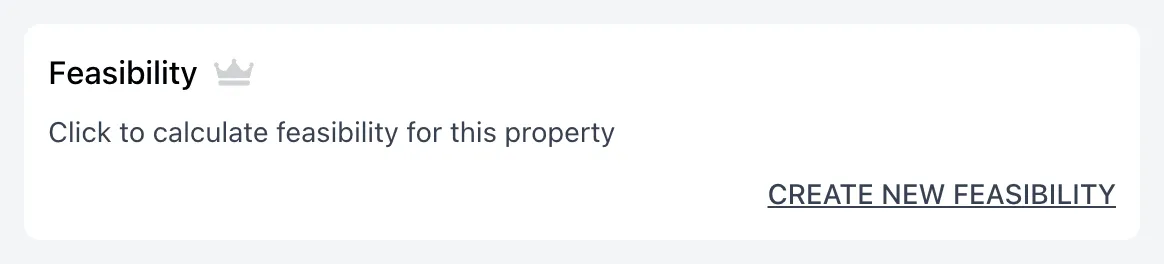
- Feasibility is a premium feature. If you see a crown icon next to Feasibility on the property page, your plan doesn’t include it. See plans.
- The default values Stash provides are a starting point only. Change them to match your own cost estimates for the area.
Run a feasibility
- Open the property. Search for the address or click the property on the map.
- Go to the Feasibility card. Open the Due Diligence tab and scroll to Feasibility under Resources, then click Create new feasibility.
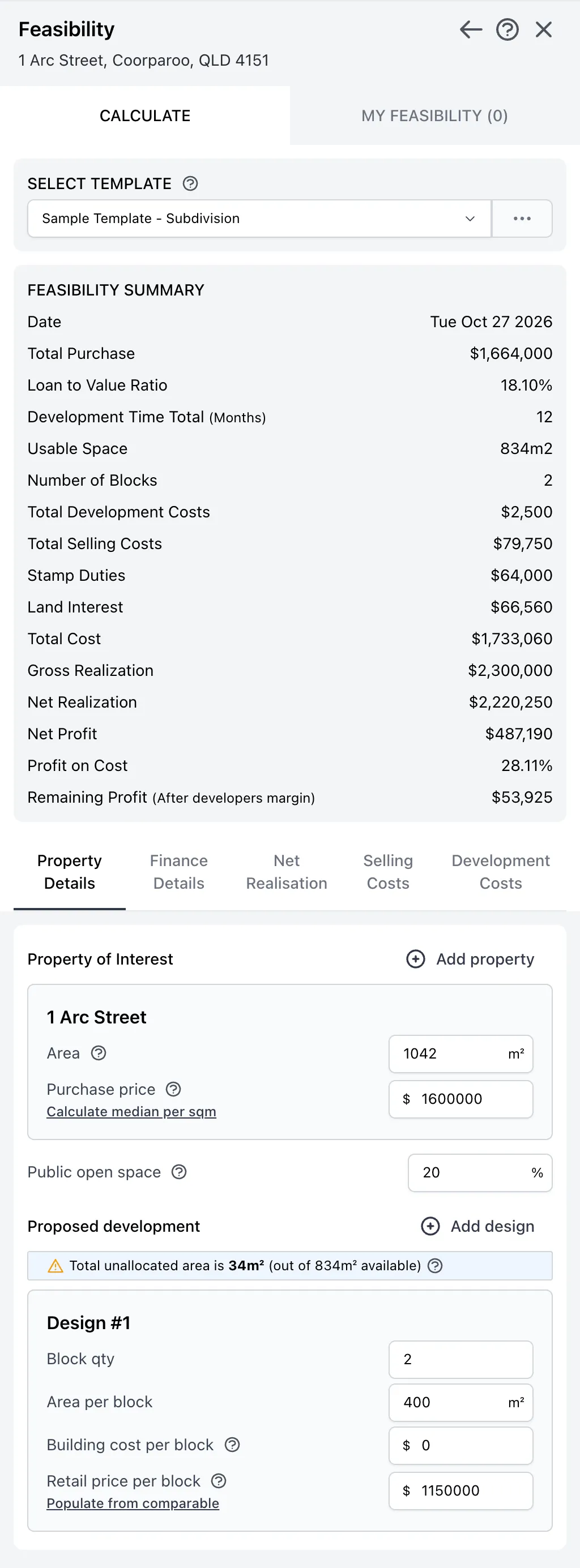
- Choose a template. Under Select Template, pick the template to start from. Templates hold your preset values, so you can reuse the same numbers for a common strategy or area.
- Fill in Property Details. Stash fills in the land Area for you. Enter the Purchase price, or click Calculate median per sqm to estimate it from recent house sales nearby. Then set Public open space and describe the Proposed development: Block qty, Area per block, Building cost per block and Retail price per block.
- Work through the other sections. Use the buttons above the form to move between Property Details, Finance Details, Net Realisation, Selling Costs and Development Costs. Hover the help icon next to a field to see what it means.
- Check the summary. The Feasibility Summary at the top updates as you change any figure. It shows the total purchase, loan to value ratio, development time, number of blocks, total cost, gross and net realisation, net profit, profit on cost and remaining profit after the developer’s margin.
- Save it. Click SAVE FEASIBILITY and give it a name. Save a feasibility study.
Leave the Feasibility page open and click another property on the map. Stash loads the same calculator for the new property, so you can compare sites without starting again.
Model more than one design
Click Add design under Proposed development to add another block or dwelling type, for example a mix of 350m² and 450m² lots. Each design has its own quantity, area, build cost and retail price. To rename a design, click the pencil icon next to its name. To remove one, click the bin icon.
The note above the designs shows the Total unallocated area: the usable area (property area less public open space) that isn’t yet allocated to a design. Adjust the quantity or block sizes to use as much of the site as you can.
Save your own template
To keep your figures for next time, click the … button next to the template list and choose SAVE PRESET. You can also RENAME or DELETE your own templates there. Stash’s default template can’t be deleted.
Common questions
Why are some fields outlined in red?
A required field is empty or has an invalid value. Fix the fields marked in red before you save.
Can I work out a feasibility for several lots together?
Yes. See Feasibility for amalgamated blocks.
Can I use my comparable sales for the retail price?
Yes. See Use comparable sales in your feasibility.
A feasibility in Stash is an estimate for research. Confirm costs, contributions and planning rules with council, your builder and your advisers before you commit to a site.