

A Stash property report pulls together everything you’ve found about a site into one document: your feasibility, comparable sales, planning and risk information, aerial imagery and more. You choose the pages, add your details, and download it as a PDF or print it.
Before you start
- Property reports are a premium feature. If Print Report is greyed out, your plan doesn’t include it. See plans.
- Do your research first. Saved feasibilities, saved comparables, property notes and files you’ve attached to the property can all go into the report. Save a feasibility study.
Create the report
- Open the property. Search for the address or click the property on the map.
- Click Print Report. It’s at the bottom of the property page. Your report opens, ready to customise.

- Open Report Settings. Click Report Settings at the top of the report.
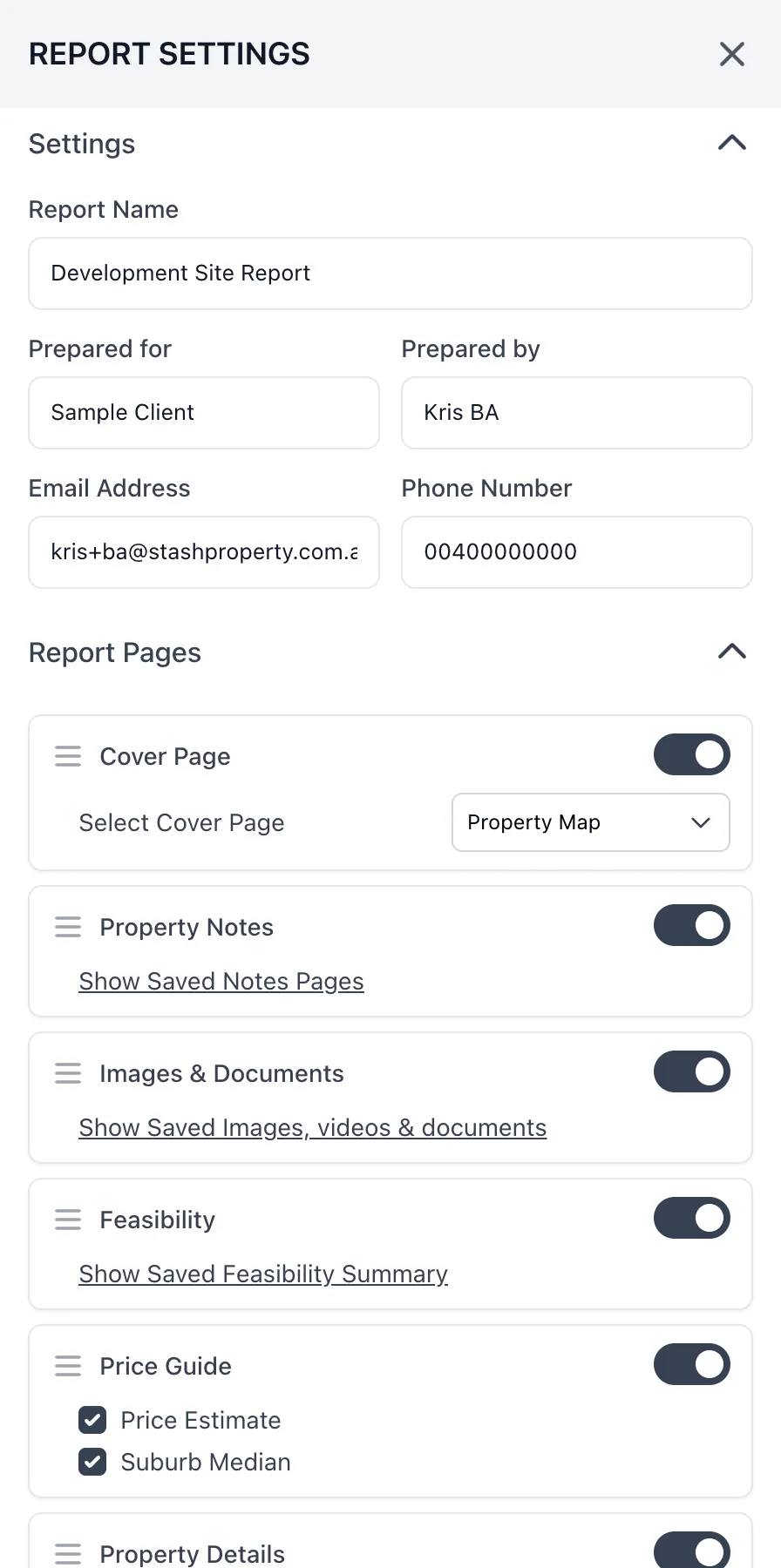
- Add your details. Under Settings, fill in Report Name, Prepared for, Prepared by, Email Address and Phone Number. These appear on the report.
- Choose your pages. Under Report Pages, switch pages on or off and drag them into the order you want. Some pages have extra options when they’re switched on, such as:
- Cover Page: under Select Cover Page, choose Property Map, Property Photo or Background Color.
- Price Guide, Property Details and Market Insights: tick the sections you want.
- Feasibility: click Show Saved Feasibility Summary to pick which saved feasibilities to include.
- Comparable Sold Properties, Comparable Rentals Properties and Comparable For Sale Properties: choose from your saved comparables.
- Heatmaps: choose up to five heatmaps.
- Property Notes and Images & Documents: choose which saved notes and files to include.
- Download or print.
- Click Download Report to save the report as a PDF. The button shows Preparing Report while Stash builds the file.
- Click Send to printer to open your browser’s print dialog. Choose your printer, or choose Save as PDF as the destination.
- Go back to the property. Click Back at the top left.
What the report can include
Depending on your plan, add-ons and the data available for the property, the pages include:
- Cover Page, Property Notes and Images & Documents
- Feasibility, with one page for each saved feasibility you include
- Price Guide and Property Details, including ownership, description, neighbourhood profile and risks
- Property Timeline
- Aerial Imagery, Planning Information and Risks & Overlays
- Market Insights, Heatmaps and the comparable sold, rental and for sale pages
- Development Activity and Checklist
With the MetroMap aerial imagery add-on, the Aerial Imagery page shows recent high-resolution aerials and lets you choose the capture date to show, so you can see how the site has changed. Turn on recent aerial imagery.
Common questions
Why is a page missing from my report?
Check it’s switched on under Report Pages. Some pages only appear when there’s data for the property, or when you have the add-on that provides it.
Can I save my report settings?
Your details and page choices are remembered for the next report you create.
I can’t see Send to printer
Send to printer isn’t shown on phones and tablets. Use Download Report instead.