

You can use Stash on the go to check saved properties, look up an address or suburb, and review your pipeline. Use the Stash app on your phone or tablet, or open Stash in your mobile browser.
Get the Stash app
- Download the app. Get Stash for iPhone and iPad from the App Store, or for Android from Google Play.
- Log in. Use the same email and password you use for Stash on your computer. Your saved properties, statuses, tags and notes are the same on every device.
- Start from your dashboard. The app opens on your dashboard. Use the search bar (it reads Search… on small screens) to find an address or suburb.
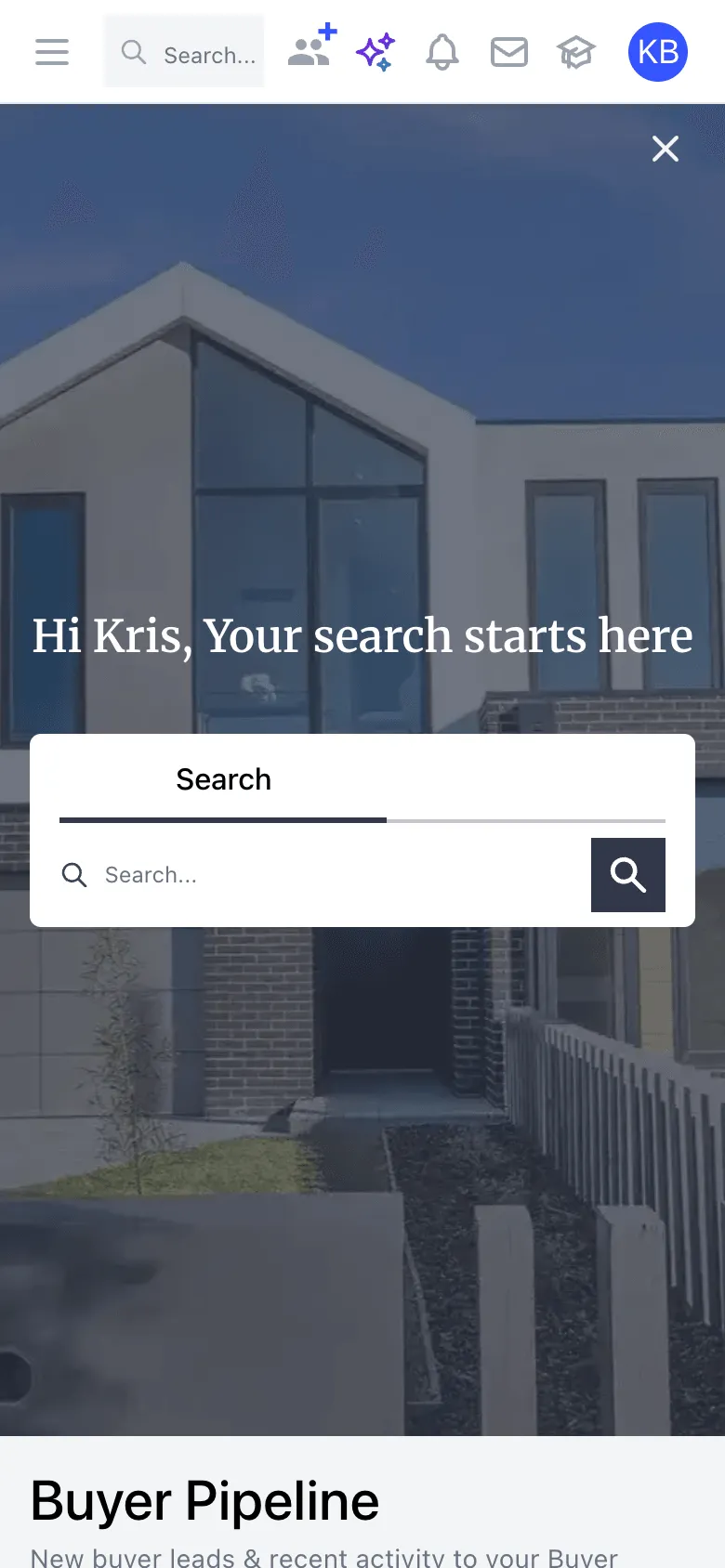
Use Stash in your mobile browser
You don’t need the app. Go to stashproperty.com.au on your phone or tablet and log in. The layout adjusts to your screen, with the menu tucked into a side bar.
What’s different in the app
Some tasks are better done on a computer, so the app leaves them out:
- Billing Centre isn’t in the profile menu. To view invoices or change your card, log in on a computer. See Download your invoices and Update your card details.
- The Mail list for printing and posting letters isn’t available. See Mail out letters.
- Exports aren’t available, including exporting comparable sales, hotspots and feasibility studies.
- The drawing tools aren’t shown on the map.
- On Android, Stash AI chat isn’t available in the app.
Planning a big research session, a feasibility study or a mail-out? Use Stash on a computer for the full set of tools, then check your saved properties from your phone while you’re out inspecting.
Troubleshooting
I can’t log in to the app
Check you’re using the email address you log in with on your computer. If you’ve forgotten your password, see Reset your password.
Something looks wrong on my phone
Close and reopen the app, or reload the page in your browser. If that doesn’t fix it, see Basic troubleshooting.