

Stash connects to the CRM you already use, so your clients, briefs and properties stay in step without double entry. How you connect depends on your CRM.
Before you start
- An active Stash plan. See plans.
- If you’re part of a team, CRM integrations are usually set up by the team owner or admin. Team members may not see them, depending on how your team shares its pipeline.
Zoho CRM (including Systems Down Under and Sqible)
The Zoho CRM integration syncs your My Clients, Client Briefs and Property Shortlist between Zoho and Stash.
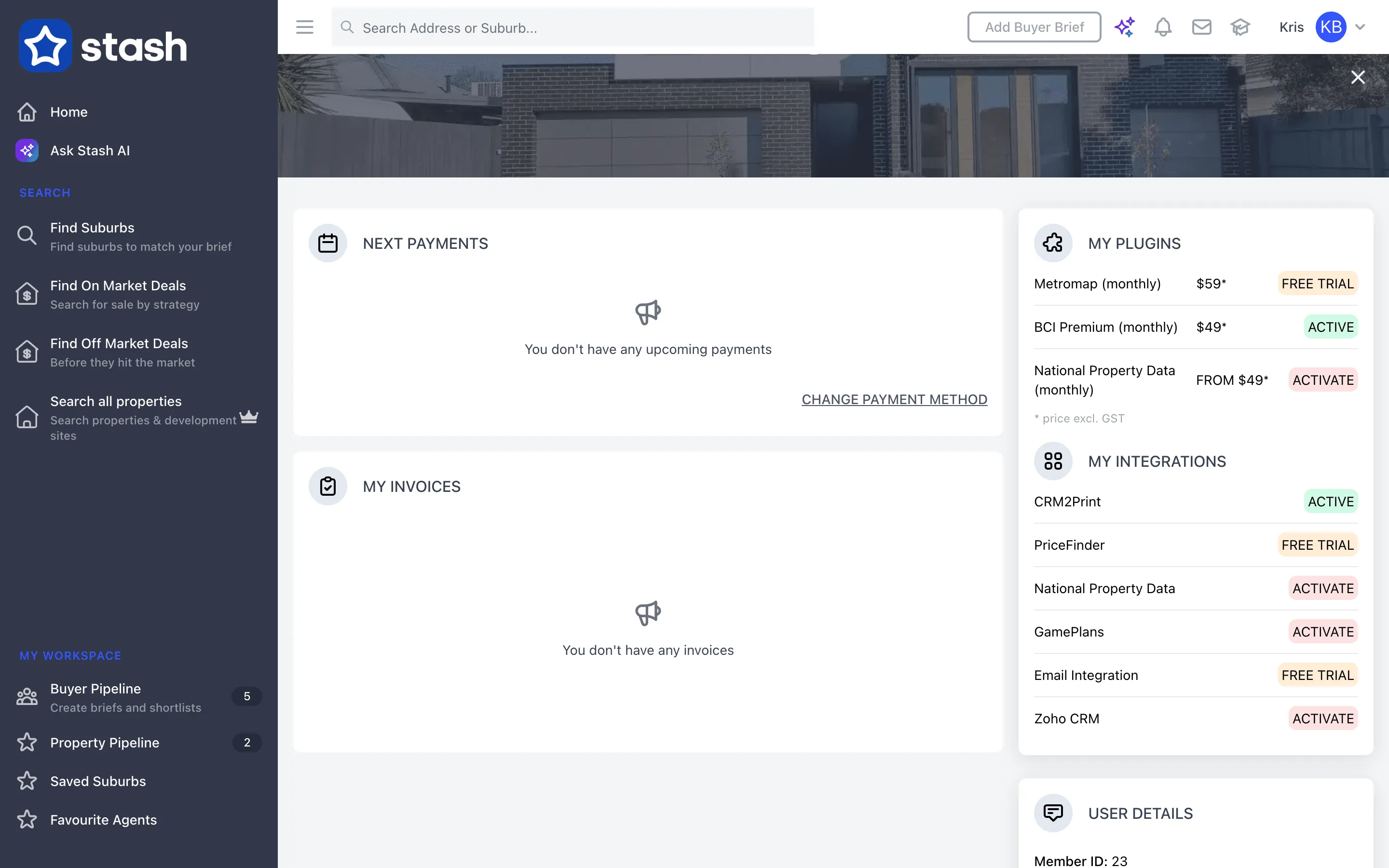
- Open the Billing Centre. Click your name at the top right, then choose Billing Centre.
- Find Zoho CRM. Under My Integrations, click ACTIVATE next to Zoho CRM.
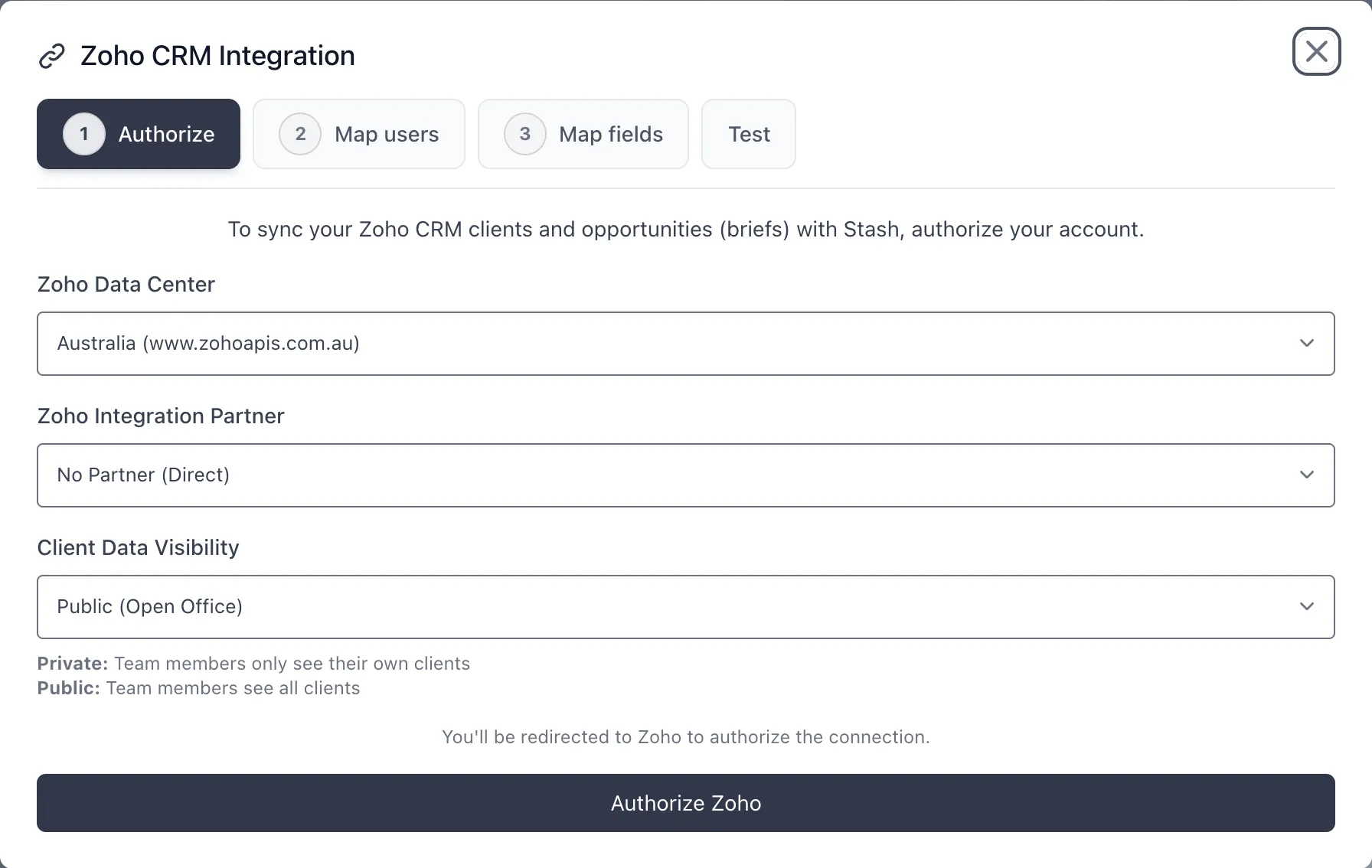
- Authorize. In the Authorize step, choose your Zoho Data Center (Australia or United States) and your Zoho Integration Partner: No Partner (Direct), Systems Down Under or Sqible. Set Client Data Visibility to Private (Closed Office), where team members only see their own clients, or Public (Open Office), where they see all clients. Click Authorize Zoho. You’ll be redirected to Zoho to approve the connection.
- Map users. In Map users, match each Stash team member to their Zoho user. Map at least one team admin.
- Map fields. In Map fields, match your Zoho fields to the Stash fields for each module.
- Test. Run the Test step to check the sync works before you rely on it.
To turn the integration off, open it again from My Integrations and choose Disable Zoho integration.
Once your team admin has connected Zoho, it’s controlled at team level. If you’re not mapped to a Zoho user, ask your admin to map you in the Map users step.
GamePlans
- Open the Billing Centre and find GamePlans under My Integrations.
- Click ACTIVATE. Paste your Gameplans Client ID and Secret Key, then click Activate Gameplans.
Partner CRMs that ask for a Stash API key
Some partner products connect to Stash with a key you create.
- Open API Access. Click your name at the top right, choose My Profile, then open the API Access tab.
- Choose Use an Integration.
- Create a key. Enter a Key Name, such as “CRM Sync”, and click Create API Key. The key is copied to your clipboard.
- Paste it into your CRM. Paste the key into the product’s Stash API Key field.
Delete the key at any time to revoke access. End User API Keys only work with approved third-party integrations. To build your own connection, see Getting started with the Stash API.
Import your property database
You can bring the properties in your CRM into your Property Pipeline with a CSV file. This is how real estate agents get their database into Stash.
- Open your pipeline. In the side menu, choose Property Pipeline.
- Click Connect property data.
- Choose Upload CSV. Export your properties from your CRM as a CSV with address, suburb and postcode columns. Click Download template if you need one.
- Map your columns and import. Check the Column mapping, choose a status and tags under Import settings, then click Import CSV. Review the matches and click Finish import.
Direct connections to agency CRMs such as LockedOn, Vault CRM and Rex are shown as Coming soon. Once your database is in Stash, see it analysed in Patch database insights.
Common questions
My CRM isn’t listed
Contact us. We’re adding integrations with partners, and you can still import properties by CSV.
I don’t see My Integrations or Zoho CRM
If you’re on a team, ask your team owner or admin. They manage CRM integrations for the team.