


Be alerted with property auto reminders
Updated November 2026: auto reminders are now attached to your pipeline statuses. Move a property into a status with a reminder and Stash sets the due date, then lets you know in your notifications. The month and day to-do views have been replaced by notifications and a Due Date sort in Property Pipeline. The current steps are below.
Save time, stay on track and see results faster. Sounds good right? That’s exactly what our latest feature is designed to do while more effectively managing your daily tasks.
With Stash Auto Reminders you can now customise and create your own property research and follow up from your desktop or mobile device.
Gone are the days of having to jump across to your email calendar or paper todo-list. You can now simply manage all your property tasks and research all in one Stash system.
Why are effective follow up reminders critical to your success?
Stay focussed on your property tasks, drive self-accountability and see results. With effective follow up, you’re setting yourself up for greater success.
Whether it is reminding yourself to collect or view specific property data or setting a future date to contact an owner, actioning follow up is crucial when it comes to real estate, but can also be nerve wrecking. That is why it is so important to set auto reminders to ensure you take action within the timeline you’ve set. Think of it as keeping yourself accountable.
Why Stash Auto Reminders equal easier viewing?
1.Once you follow the easy steps to set up your reminders, you’ll have a concise list of what needs to be done to stay on track with your property research
2. View by month or a specific day’s to do list
3. Set key reminder dates to plan your next steps
4. Create your own unique custom reminders and colour code your map markers
5. Set reminders or status updates in bulk
How to set up auto reminders in Stash today
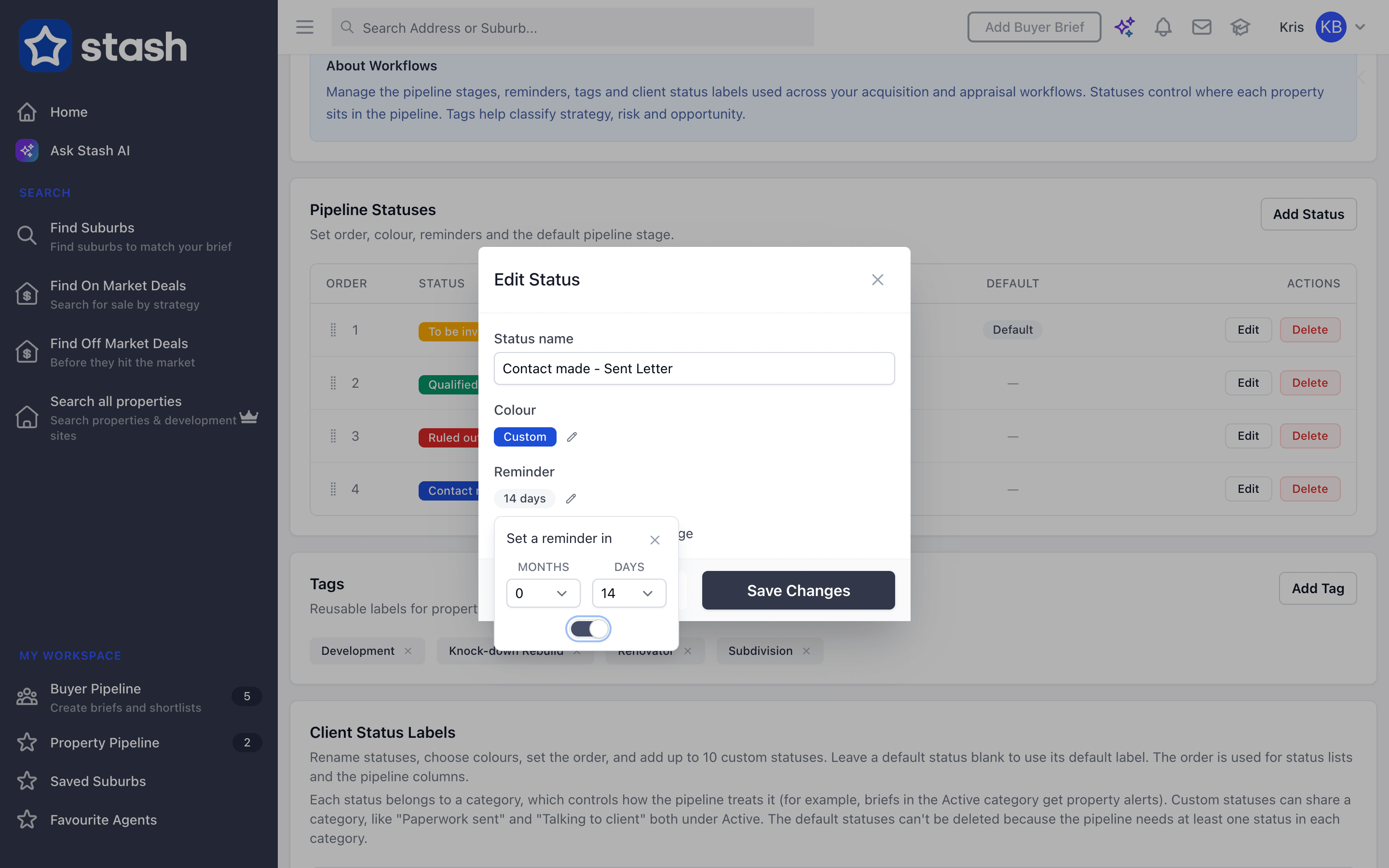
- Open Pipeline Statuses. Click your avatar at the top right, choose My Profile and open the Workflows tab.
- Edit a status. Click Edit next to the status you want a reminder for, such as the stage after you’ve sent a letter.
- Set the timing. Next to Reminder, click the edit icon, choose the Months and Days under Set a reminder in, switch the reminder on and click Save Changes.
- Move properties into that status. Do it on the property, or for many properties at once in Property Pipeline. The due date is the day you set the status plus the time you chose.
- Check your notifications. When properties are due, the bell at the top of Stash shows a notification such as “You have 3 properties to follow up”. Open it to change their status or tags, or add them to your mail list, in one go.
Each status also has its own colour, which sets the colour of that property’s pin on the map. Reminders show in your Stash notifications rather than by email. To see what’s due next, choose Due Date under Sort by: in Property Pipeline.
Full steps can be found in our Help Centre: Set up auto reminders and Customise statuses and map buttons.
Should you require further assistance, please e-mail us at support@stashproperty.com.au or reach us through our live chat at https://www.stashproperty.com.au and we will be happy to assist you.
We always appreciate your feedback.
Happy Stashing!